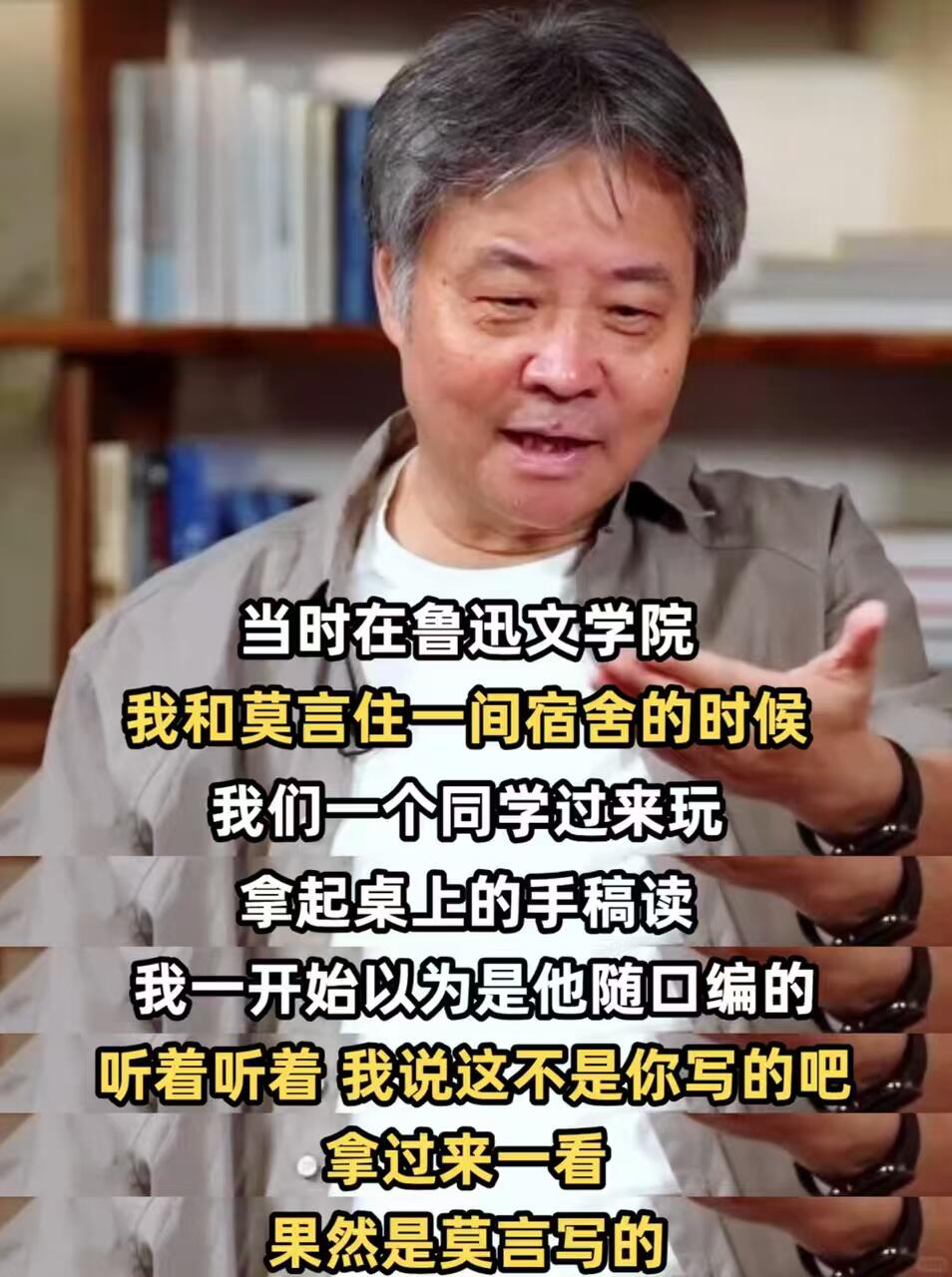
Video Subtitle Stitcher
Create long subtitle images with original or script lines
Video Subtitle Stitcher
Create long subtitle images with original or script lines
Showcase
Description
Transform local or authorized online videos into 3:4 or original-ratio long subtitle images through source retrieval, transcript localization, segment selection, precise frame capture, compact cropping, stitching, and quality inspection. Supports two distinct outputs: native subtitle mode for videos with burned-in subtitles, and script subtitle mode for drawing reviewed timestamps and lines onto real video frames. Use this when you need native subtitle screenshots, subtitle frame collages, YouTube quote long images, line screenshots, non-redrawn subtitles, custom Chinese lines, or adjustments to aspect ratios, subtitle areas, line intervals, and aesthetics.
Recommended by
Dancang
Why we love this skill
Featured for strictly distinguishing between preserving original screen subtitles and post-drawing script subtitles, preventing content alteration while organizing verified lines into shareable subtitle long images. It also covers speaker verification, stable frame filtering, and frame-by-frame visual inspection for more reliable results.
Best for
Ideal for creators and editors who need to turn video subtitles or approved lines into shareable long images.
How to use this Skill
Provide your input
Provide a local video or online video you have the right to process, and specify the native or script subtitle mode, timestamps or lines, aspect ratio, and other requirements.
Run the Skill
Select and verify video frames and subtitle content, preserve original subtitles or render confirmed lines onto real frames based on the chosen mode, then stitch them into an image and inspect each one.
Review your result
Receive one or more long video subtitle images, complete with timestamps or line data and an overview preview.
Related Skills
View all
MiniMax H3 Video Prompt Assistant
Give a complete reference video to a multimodal AI to automatically break down its real shots, timeline, visual changes, and audible sounds, then generate production-ready prompts for video creation. It is not limited to live-action, advertising, or film footage; it also supports product showcases, architecture and scenery, animals, food, sports actions, dance, 2D/3D animation, UI demos, screen recordings, infographics, visual effects, and abstract imagery. Based on the video’s information structure, the assistant can output complete text-to-video prompts, or generate shot-by-shot prompts for the reference image or first frame, continuous motion, necessary end frames, and shot-level stability constraints needed for image-to-video creation. When both the static image and temporal changes matter, it can provide both versions. The generated content preserves information that can be directly verified, including subjects, composition, camera movement, action causality, structural changes, text, dialogue, ambient sound, and music, while tracking each shot through its actual ending state. When text, sound, identity, location, or filming method cannot be clearly confirmed, the assistant avoids filling in details without evidence. It also distinguishes the intended scene from external elements such as player watermarks and control overlays, helping reduce content drift during generation. Suitable for creators and production teams who need to reverse-engineer text-to-video prompts or I2V shot prompts from reference videos, or organize source material for video reconstruction, style reproduction, and generative advertising.
 Video
VideoIdiom & Fable Video Maker
Quickly turn an idiom, historical anecdote, or fable into a continuous narrative storyboard script ready for video generation. Whether it’s “Waiting by a Tree Stump for a Rabbit,” “Plugging One’s Ears While Stealing a Bell,” “Sima Guang Smashes the Vat,” or an idiom you enter yourself, the Skill reconstructs the story’s setting, character relationships, key actions, and moral, then organizes them into a clear, tightly paced short-video plot. Two versions are provided by default: 15 seconds and 30 seconds. The 15-second version is ideal for quickly presenting the core plot, while the 30-second version adds environmental setup, character reactions, and climactic actions for a more complete and dramatic story. Each shot clearly specifies the emotion, framing, camera movement, and any necessary narration. Characters are given consistent visual traits to help maintain continuity across shots and work with common video generation models. All narration is written in a voiceover format—off-screen narration or spoken character dialogue—so the video model actually speaks the lines instead of rendering them as on-screen text. The default style is cartoon animation, but you can also request ink wash, paper cut, shadow puppetry, realistic, or other visual styles, or ask for only one duration. The final script is written entirely in Chinese and includes the scene atmosphere, character designs, shot descriptions, and continuity requirements. It is suitable for idiom animations, fable stories, Chinese-style short films, and traditional culture videos for children or general audiences.
 Video
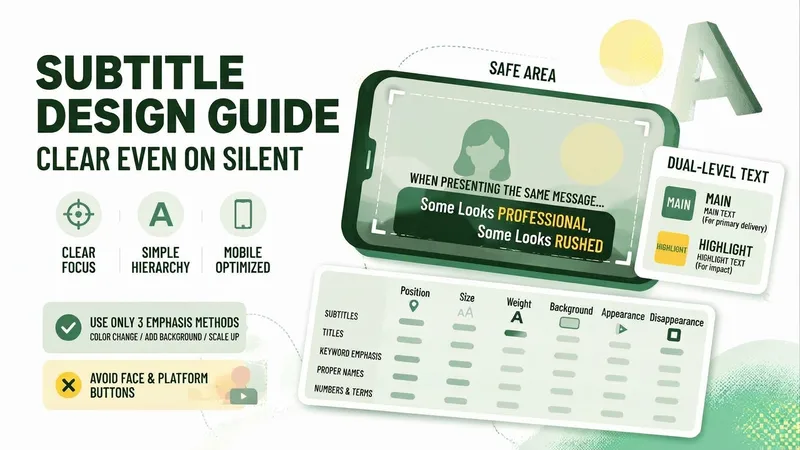
VideoCaption Layout Guide
There is only one standard for judging captions: when viewed on a phone, at thumb size, with the sound off, can the sentence still be understood at a glance? 【Caption Layout Guide】 starts with three non-negotiables: safe zones, explaining how much space to leave on each side for vertical and horizontal video; a maximum number of characters per line, including why it matters and why there is a limit to how many characters people can read in one second; and a two-level hierarchy only, with main text and emphasis text, because a third level creates confusion. It then provides a fill-in-ready layout parameter table covering captions, titles, keyword emphasis, names and places, numbers, and proper nouns. For each, it specifies placement, relative size, font weight, whether to use a background, and when it should appear and disappear, while marking areas to avoid around faces and platform buttons. Keyword emphasis is limited to three methods—change the color, add a background, or enlarge the text—with a clear explanation that you may choose only one. It also includes six practices that look the most amateurish and how to fix them, plus a simple muted-phone viewing check. Ground rules: no dialogue or script writing, no recommendations for specific font files, no instructions for disguising or obstructing text to evade platform moderation, no judgments about the user's appearance or accent, and no promises about completion rates.
Information
- Version
- v4
- Last updated
- Runtime credits
- Usage-based
- Models
- Auto
- Use cases
- Images & design
- What you get
- ImageData