
Trending Prompts
View All


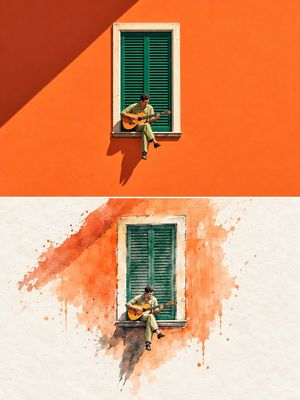
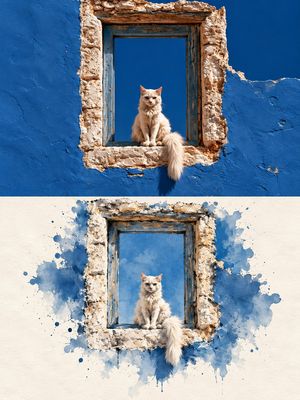
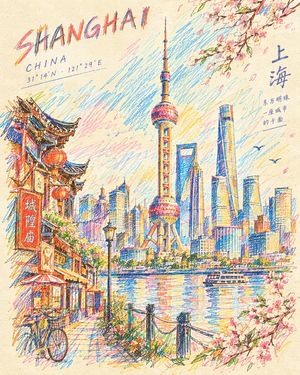

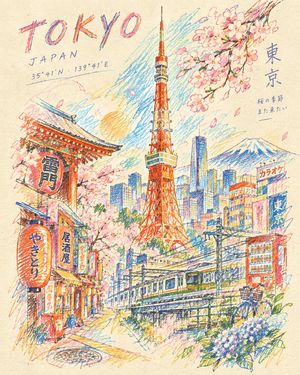
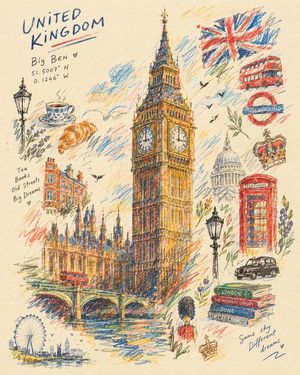






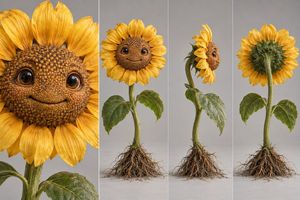





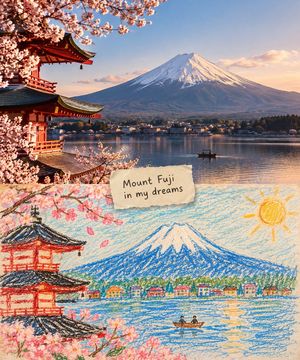
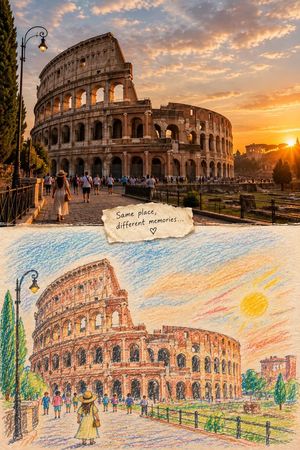
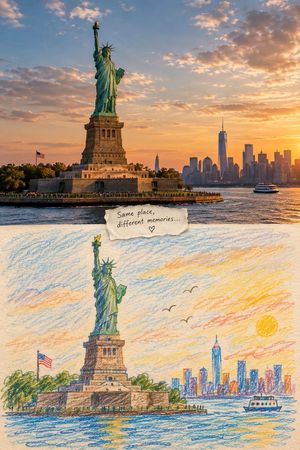
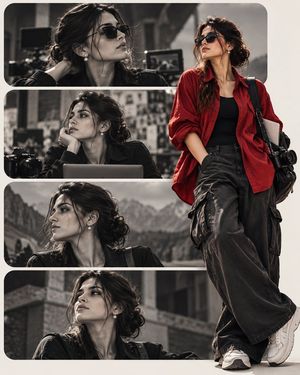
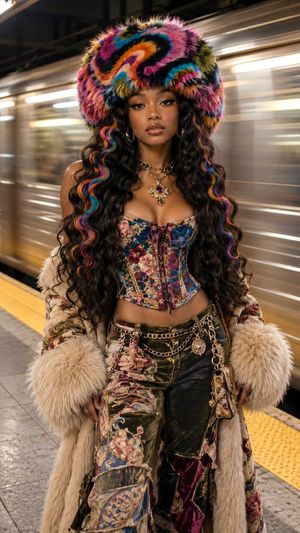

GPT Image 2.5 Prompts
Browse and copy prompts collected for GPT Image 2.5.
The collection includes author-shared prompts and AI-written descriptions reconstructed from example images. Reconstructed descriptions are not the original author’s prompts.
Use GPT Image 2.5 in YouMind
Open a prompt, copy it, and adapt the subject and style. Add reference images when needed, then generate in YouMind.
Choose an image model
| Model | When to try it |
|---|---|
| GPT Image 2.5 Sunburst | Detailed creative work and precise edits when you can allow more generation time. This collection uses Sunburst by default. |
| GPT Image 2.5 Flare | Everyday images and faster iteration. Available in the YouMind workspace. |
Portrait consistency and product photo editing
For GPT Image 2.5 portrait editing, outfit changes or product backgrounds, compare what stays unchanged: facial features, product shape and packaging labels. Start with Sunburst when fine detail is the priority; try Flare for quicker variations once the result meets your needs. A reference photo helps define the subject but does not guarantee an exact match.
Poster text and social media images
Both Sunburst and Flare can generate images containing text. For posters, ads or social graphics, compare spelling, hierarchy and layout using the same copy. Short headlines and clear placement instructions make evaluation easier. Neither model removes the need to proofread before publishing.
Moving from an existing image model
Already have a working GPT Image 2 prompt? Try Flare with the same prompt, reference and aspect ratio. If complex composition or editing still falls short, test Sunburst. Compare useful results and waiting time on your own task; a model change does not guarantee better results for every prompt.
Model positioning follows OpenAI’s introduction. Actual results and generation times depend on the request.