YouMind
Sign in

AI Anime Video Generator

Upload an anime character or scene, or describe your idea in words. Choose an AI video model, movement, and sound options to bring an anime scene to life.

AI anime video examples

Explore text-to-anime video through cel shading, fantasy scenes, and character action. Compare the prompts with their video results to see how style, movement, and camera direction are described. Use a prompt as a starting point and add your own character reference when needed.

Bring an anime character to life

Anime Witch Transformation with Bat Wings
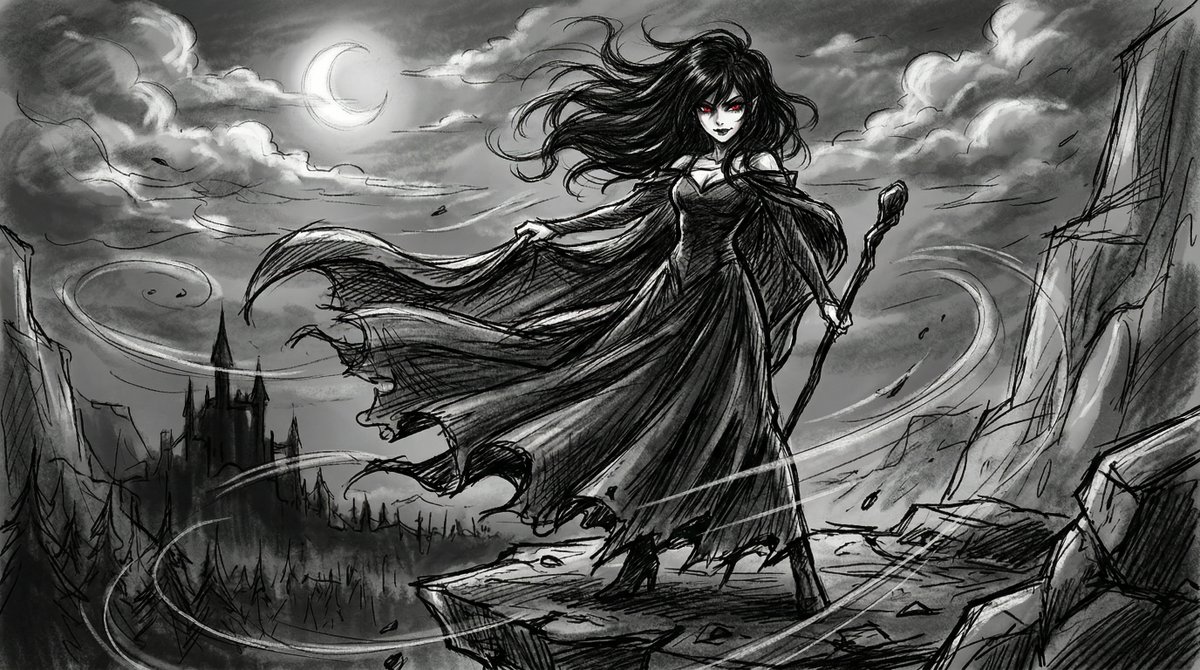
Reference images
Reference images

Prompt

"Image1 is the reference for the entire video. It is a sketch art anime style. 1sec-3seconds the woman is standing still and the wind is blowing hard. Her dress and hair are blowing in the wind. 4sec-6sec the woman magically causes the staff in her hand to disappear. She smiles with an evil smile. 7sec-15sec She holds out her arms and large bat wings appear from her back draping down from her arms. (the wings should be attached to her as the wings are attached to a bat). She turns her back to the camera and jumps off the cliff flying towards the castle in the distance, wings flapping like a bat. She should have bat wimgs and not bird wings. The sketch art anime style should be used throughout the video just like the reference image1"


Video result
Mistress Belladonna NightshadeView full prompt
Mr.Iancu

90s OVA Style Elf Priestess

90s anime. Hand-painted cel shading. No AI shortcuts on the aesthetic. Elf priestess—summoning circle, golden runes, giant salamander spirit, draws the blade. Every frame looks like it was pulled from a lost OVA.

View full prompt
Yaseen Khan Gul

Gojo vs. Sukuna Animation with Seedance 2

Gojo vs Sukuna the battle we all have been waiting for Studios must animate Sukuna vs Gojo

View full prompt

Create AI anime videos from text or images

Bring your anime characters to life

Start with a character illustration or anime scene. Describe an expression, gesture, or camera move, or use text alone to imagine a character with hand-drawn lines and cel shading.

Reference image and prompt illustration

Frame your anime scenes

Choose a supported wide frame for a cinematic anime scene or a vertical format for a short clip. Set the model, quality, and sound options around the action.

Aspect ratio composition illustration

How to generate AI anime videos

Start with a character, a setting, and one action. Use an illustration or text prompt to develop an anime scene one shot at a time.

  1. Add an anime image or describe your scene

    Upload a character illustration or scene as a visual reference. Describe the outfit, expression, setting, and one action. For text to anime video, specify hand-drawn linework, cel shading, lighting, and camera movement to guide the look.

  2. Choose the model and scene format

    Select a video model and its supported reference, aspect ratio, quality, and sound settings. Use a wide frame for an atmospheric scene or a vertical frame for a character portrait. Keep the face and main movement in view.

  3. Generate and refine the anime animation

    Sign in to generate with your available credits and plan. Check the face, hands, outfit, and movement, then refine the prompt in the conversation. For several shots, reuse the character reference and review consistency before assembling clips in a video editor.

Frequently asked questions

Can I generate anime videos from text
Yes. Describe the character, setting, one main action, and camera movement in a text prompt. Add the anime look you want, such as hand-drawn linework, cel shading, or cinematic lighting. Start with a single scene and refine the result before adding more actions.
How can I animate an anime character image
Start with a character image or a written description, then add one action and a camera direction. Try a gentle head turn or a short dance before combining complex movements. Keep the character description consistent when developing multiple shots.
Do I need an image to generate a video
You can start with text, an uploaded image, or both. “Use this prompt” fills only the prompt. “Use this example” applies the example’s prompt and settings, along with its reference image when included.
What images work best for AI video generation
Use a sharp image with one clear subject and good separation from the background. Photos, illustrations, product images, and generated artwork can all work well.
Can I Change Aspect Ratio Quality and Sound
It depends on the selected video model. The interface only shows controls supported by that model, which may include aspect ratio, quality, reference mode, and sound. If an option is hidden or locked to automatic, the current model or mode does not allow a manual override.
How Can I Keep the Subject Consistent
Use a sharp image with a clearly visible subject and keep the prompt focused on one primary motion. Avoid asking for large changes to pose, face, clothing, and background at the same time. If identity drifts, reduce motion, simplify the prompt, or try another model while keeping the same key subject description.
How long can a generated video be
Clip duration depends on the selected model and the options available in the creation workflow. A prompt asking for a longer video does not override the model limit. For a longer story or ad, plan separate shots and assemble the finished clips.
Can I generate videos for free
Browsing prompts is free. Video generation requires signing in and is subject to your subscription and available credits.