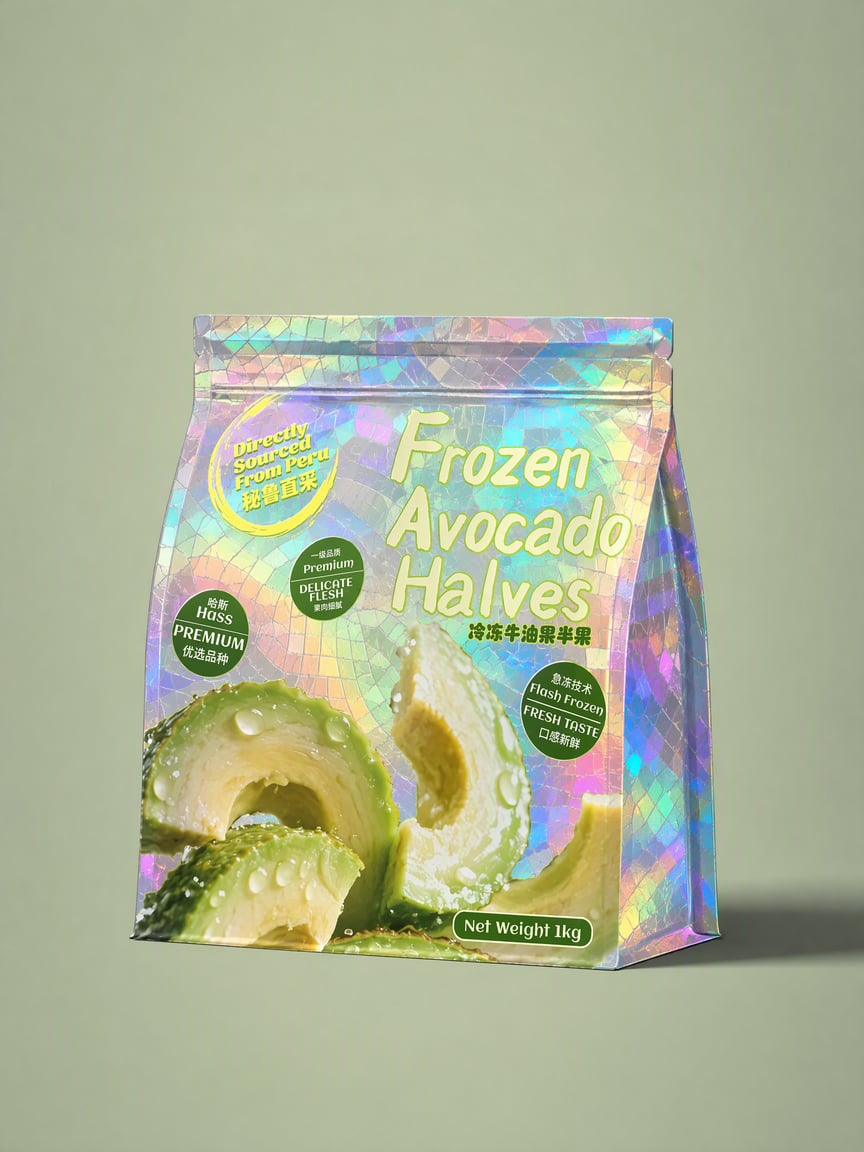
Anything Can Be Mosaic
Create mosaic art, preserving key features
Anything Can Be Mosaic
Create mosaic art, preserving key features
Showcase
Description
Upload a photo and give an ordinary scene the texture of a work of art! “Anything Can Be Mosaic” is a multi-style AI mosaic art generation Skill. Whether you’re working with portraits, wedding photos, pets, food, products, landscapes, or architecture, it can transform the original photo into a distinctive mosaic artwork. Multiple art styles to explore Switch freely among fine pixels, stained glass, crystal gemstones, low-poly, ceramic collage, 3D relief, metallic textures, retro pixels, and more. Each style gives your photo a different visual character. Preserve the original subject as closely as possible Using your uploaded photo as a visual reference, it focuses on preserving facial features, hairstyles, poses, clothing, and the key characteristics of products and pets, helping the artistic style remain as consistent with the original content as possible. Flexible ratios and quantities Supports common portrait, landscape, square, and custom aspect ratios. You can specify the number of images to generate or have the same photo rendered in different mosaic styles. Explore multiple creative directions from one photo From translucent stained glass to sparkling gemstone collages and design-forward geometric pixels, transform ordinary photos into visual works for profile pictures, wallpapers, posters, social media graphics, and creative designs. No complex design software or manual collage work is needed. Upload a photo, choose a style, and let AI help you begin your mosaic art journey. Recommended approach: upload a photo and enter “Generate 4 different styles, ratio 3:4, preserving the original subject as closely as possible” to explore different artistic effects at once. Note: Final image details, subject similarity, image ratio, and output quantity depend on the image generation model and platform capabilities used.
Why we love this skill
A versatile mosaic art tool that preserves subjects across distinct styles, from stained glass to mineral collage, for people, pets, and products.
Best for
For users who want to turn portraits, pet, product, or landscape photos into mosaic art.
How to use this Skill
Provide your input
Upload a photo and optionally specify the mosaic style, image ratio, number of images, and how closely to preserve the subject.
Run the Skill
Choose or describe the artistic style you want, then submit your generation request.
Review your result
Receive one or more mosaic art images that preserve the key features of the original subject as closely as possible.
Related Skills
View all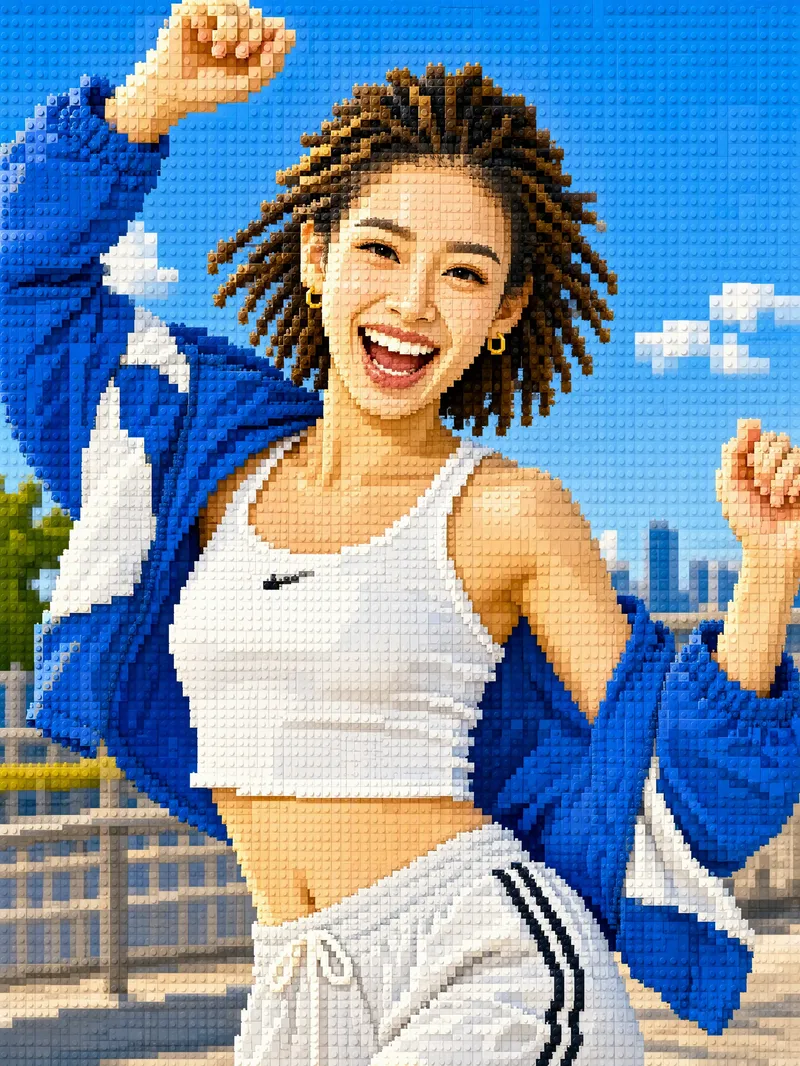 Image
ImageTurn Photos into Mosaic Art
Mosaic transformation magic: reassemble your photo into a work of mosaic art. 12 styles: pixel blocks, tiles, ancient Roman mosaic, stained glass, honeycomb hexagons, polka dots, LEGO, cross-stitch, low-poly, gold leaf, 8-bit, and paper-cut collage. Choose a style, or let it automatically create a combination with the greatest differences. True to your appearance: faces and key areas are recreated with finer color blocks, while the composition, pose, and clothing stay the same—it's still clearly the same person at a glance. Choose any aspect ratio: 3:4 by default, or switch to 1:1, 9:16, 16:9, and more. Choose the number of images: generate 1 to 9 at a time, each in a different style with the same subject. Works across models: ready to use with mainstream image-generation models. Great for profile pictures, social media covers, short-video covers, personal IP visuals, and custom gift artwork.
 Image
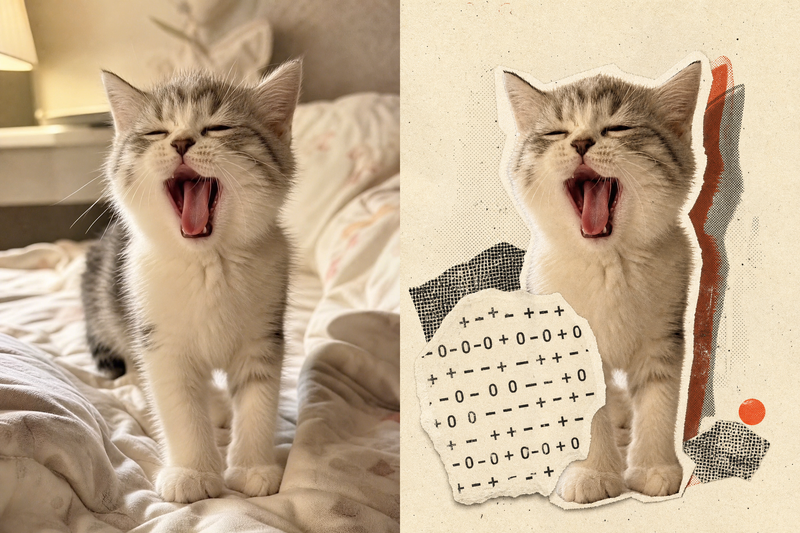
ImageRetro Collage Art
This Skill transforms your uploaded photos into visually striking vintage archival artworks, with a particular focus on portraits, still lifes, and landscape photography. Using distinctive “garbled sticker” and “print glitch” styles, it creates a dynamic visual reinterpretation while carefully preserving the original subject’s outline, pose, and position. The system precisely identifies the main subject and uses warm-white, fibrous-paper garbled silhouettes, halftone dot backdrops, and offset same-shape patches to create the visual rhythm of a handmade collage. Visually, this Skill aims for an authentic archival feel, with fine paper grain, screen-printed ink marks, and photocopy noise. Subtle registration shifts and localized fading add the warm, oxidized feeling of an old archive, while retaining about half of the original colors and key visual cues. This approach keeps the subject recognizable while using the contrast of black, warm white, and accent colors from the original image to create a visual style that feels both avant-garde and nostalgic. It is ideal for creating distinctive art posters, personalized social media avatars, or design-forward visual assets.
 Image
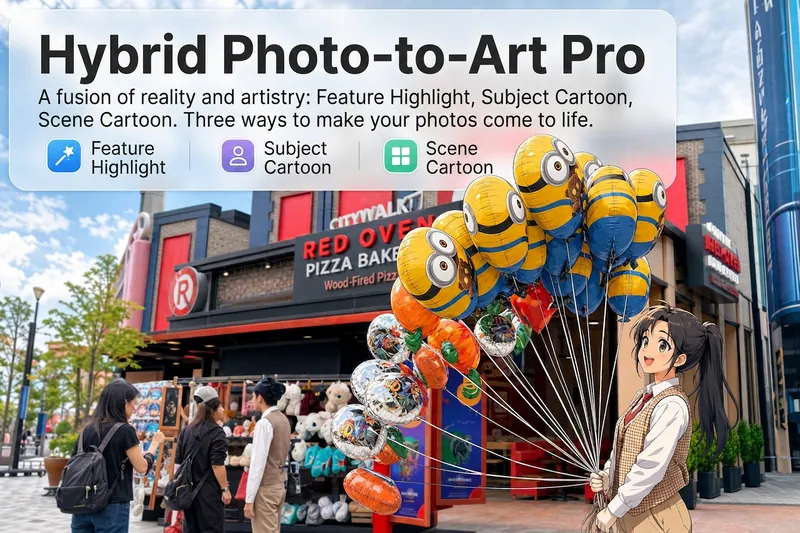
ImageReality Blend Artist Pro
Upload a photo, and AI first reads it like a visual analyst across five dimensions: what the subject is, how it is composed, its color palette, where the visual focus lies, and what emotion it conveys. It then tells you where a hand-drawn treatment would have the most impact and how to make it look best. Four real-and-drawn blend modes, four ways to play: 🔹 Local Accents — Keep the overall image realistic while AI selects 2–3 local areas to replace with a hand-drawn style. Patterns on a sign, the coffee cup in someone’s hand, or a few flowers peeking out from a flower bed—just enough to give the photo a sense of life. Choose from 4 hand-drawn styles: pencil sketch / watercolor wash / sticker doodle / clay relief. 🔹 Subject Anime — Turn a person, animal, or object into an anime-style subject while keeping the background’s realistic photographic texture. Choose from 5 anime styles: action manga / American superhero comics / Ghibli-style / Korean webtoon / Chinese ink wash. It feels like an anime character has stepped into the real world. 🔹 Environment Anime — Reverse the approach: keep the subject realistic while transforming the surrounding environment into an anime style. The contrast of being in a real world surrounded by a 2D universe is instantly amplified. 🔹 Selective Color Light Trails — Convert the image to black-and-white grayscale while keeping selected objects in their original, highly saturated colors. Clean white detail outlines surround the colored objects, extending into flowing, curling, psychedelic agate-like color trails that naturally follow the scene’s direction. Retro collage × surreal art turns a single photo into a movie poster in an instant. Each mode × 2 blending methods: Gradient Feathering (a natural transition between real and illustrated, like ink spreading through paper) / Hand-Drawn Border (a white outline, like a sticker placed on the image). No blind image generation—you're in control at every step. AI analyzes first → recommends an approach → you confirm → then it generates, helping avoid wasted results. For portrait photos, faces and facial features are automatically avoided and are not replaced with hand-drawn elements. The number of local areas is limited to 2–3, with professional constraints on their position and size—the result is a finishing touch, not a collage. 4 modes · 16 styles · 2 blending methods = 32 real-and-drawn combinations. The same photo can take on completely different moods.
Information
- Version
- v3
- Last updated
- Runtime credits
- Usage-based
- Models
- Auto
- Use cases
- Images & design
- What you get
- Image
- Visual styles
- Retro3DPixel art