How a solo AI consultant turns client workflows into reusable YouMind Skills
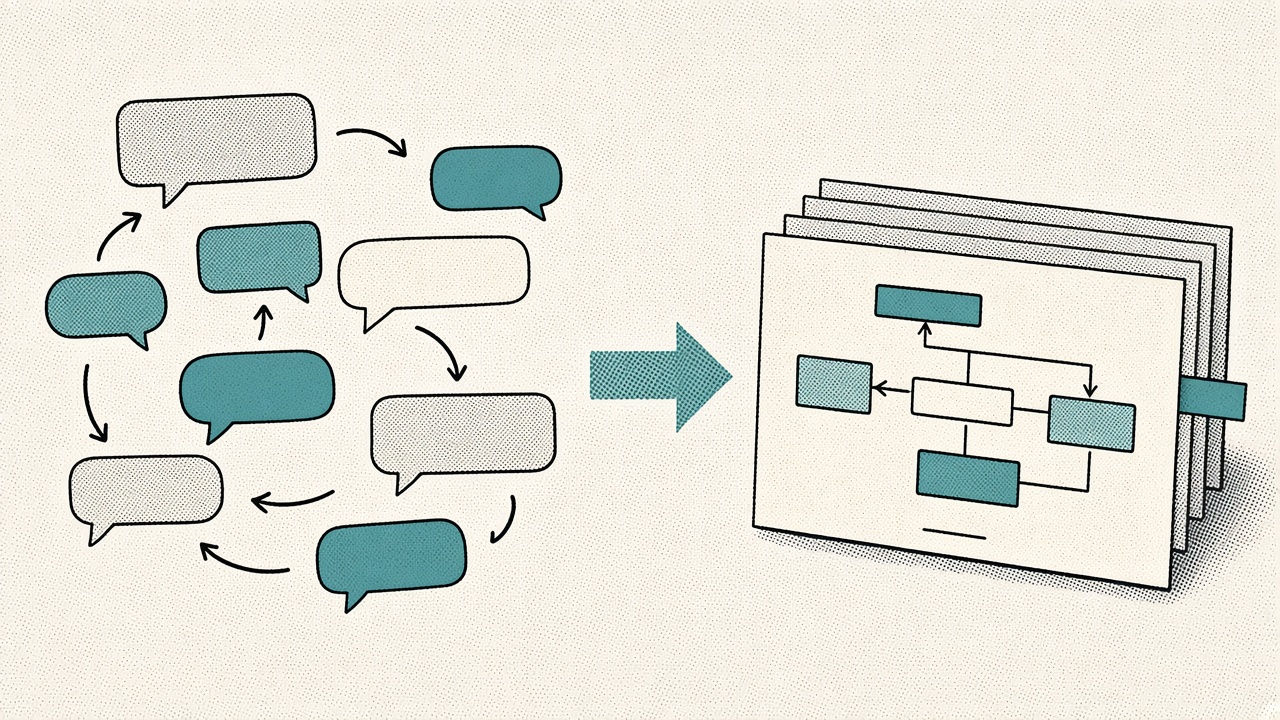
Every new client engagement can feel like starting from zero.
You already know how to map an automation stack. You’ve built the LinkedIn fast-start pack. You’ve written the playbook that turns a messy ops process into something an AI agent can run. Then the next client arrives with a similar problem—and the chat history, prompts, and half-finished docs from the last job are buried somewhere you won’t reopen under deadline pressure.
That’s the quiet tax of solo consulting: the method improves with every engagement, but the artifact rarely survives long enough to help the next one.
This article is a how-to plus point-of-view method piece (not a customer-case series). It imagines a solo AI automation consultant who works mainly in YouMind’s web app and browser extension for chat-heavy delivery, with some writing and image generation mixed in. The walkthrough below is a reproducible product demo (English UI, run for real on 2026-10-26) that shows how to package a method as a Skill—client names are example placeholders, not a named customer success story.
Four client workflows that keep coming back
In this kind of practice, four workstreams show up again and again:
1. Agent builds and model-agnostic playbooks.
Client workflows get broken into reusable “agent-build step packs”—structured prompts and steps that aren’t locked to one model. Boards hold project materials; Chat is where the playbook gets drafted and tightened: what to ask, which inputs to collect, how the agent should reason, what the handoff looks like.
2. Consulting and sales mapping.
Before building anything, you score and rank opportunities: in a CRM/automation reseller-and-implement world, which pieces are worth reselling or implementing for this client, and which workflow gaps should go first. That “score / rank” pattern repeats across clients.
3. Marketing packs for a commercial offer.
For a foodservice / kitchen-ops related offer, the work includes campaign framing and LinkedIn-style fast-start packs: positioning, post sequences, and launch copy. Similar packs show up across verticals and geos.
4. Social and community content engines.
X posts, LinkedIn packs, community-style engagement posts—content that has to ship on a rhythm. Voice, structure, and CTA patterns recur across deliveries.
Repeating task types is not the same as having a packaged method. If you still rewrite the same structure from a blank chat every week, you’re throwing away judgment you’ve already earned. A steadier pattern: Boards hold each engagement’s materials; Chat locks steps and QA; Skills keep the fixed method and leave industry, city, proof points, and tone as inputs—so the next client is a swap of inputs, not a rebuild of structure. That matches YouMind’s definition of a Skill: a repeatable AI workflow with a clear problem, inputs, steps, and deliverable, leaving the variable topic/materials for the user to fill in (see the YouMind Skills guide).
What “turning a workflow into a Skill” actually means
A prompt you typed once in Chat is fragile. A Skill is the same method after you’ve decided what stays fixed and what the next client will swap in.
The official suggestion is straightforward: after a run you’re happy with, ask the Agent to help package the process into a Skill—keep the reusable rules, turn the parts that change every time into inputs, then test with different topics and even incomplete inputs to see whether ordinary inputs still produce a shippable draft.
In consulting terms: the first client pays for discovery and standards. The Skill keeps the question list, input fields, and QA bar. The next engagement can reuse those steps and checks—as long as the new job still sits inside the Skill’s scope.
A simple 5-step pattern you can copy
You don’t need a marketplace plan. Start with one workflow you’ve already redone for clients.
1. Capture the recurring job
Pick something you’ve done at least twice: a reseller opportunity matrix, an agent-build outline, a LinkedIn launch pack, a weekly community engagement engine. Write down:
- Who it’s for
- What you need from them (inputs)
- What “done” looks like (output)
- What you always end up re-explaining to the AI
Drop source notes, past deliverables, and examples onto a Board so the context isn’t trapped in your head.
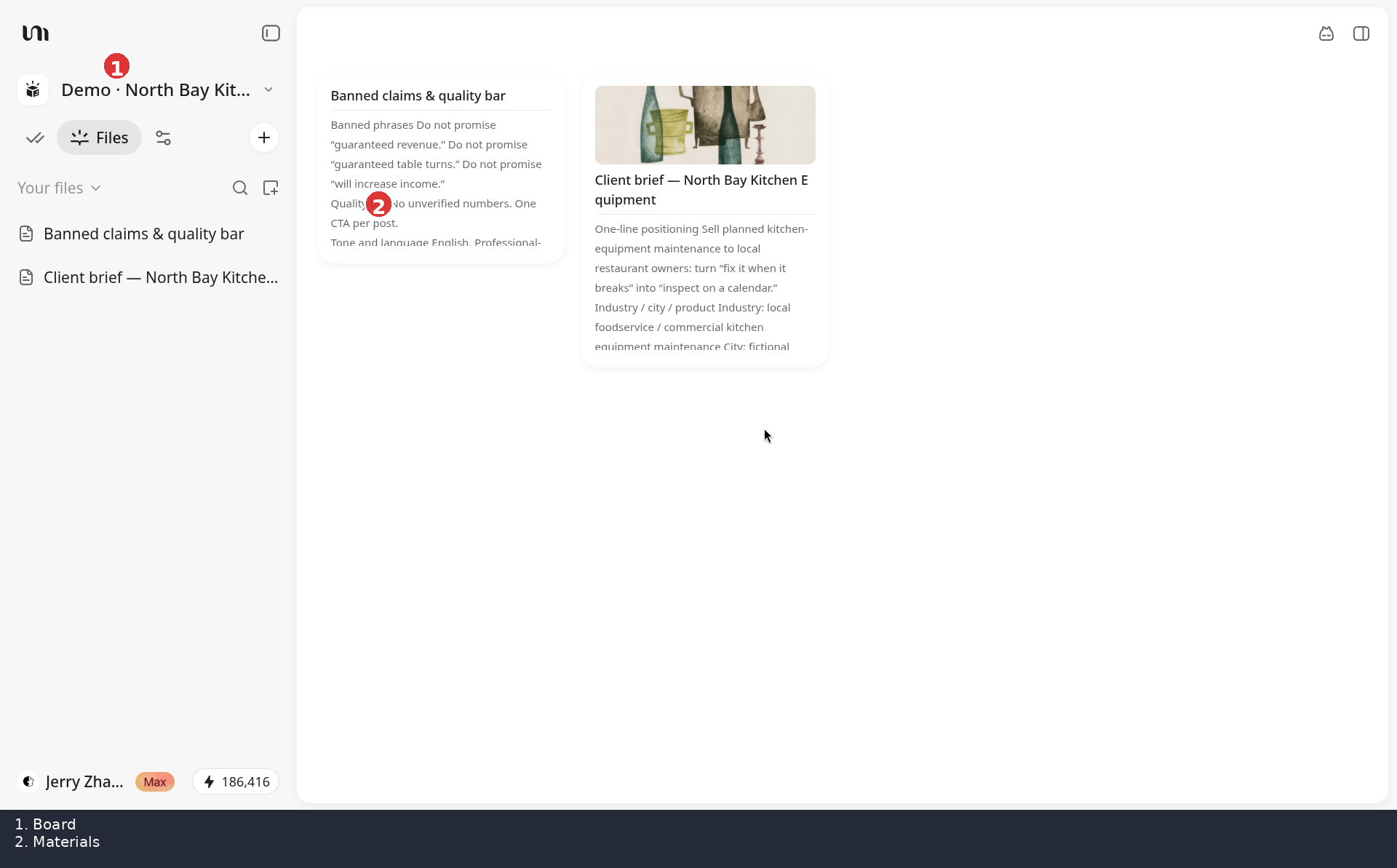
Demo Board with North Bay brief and quality-bar notes
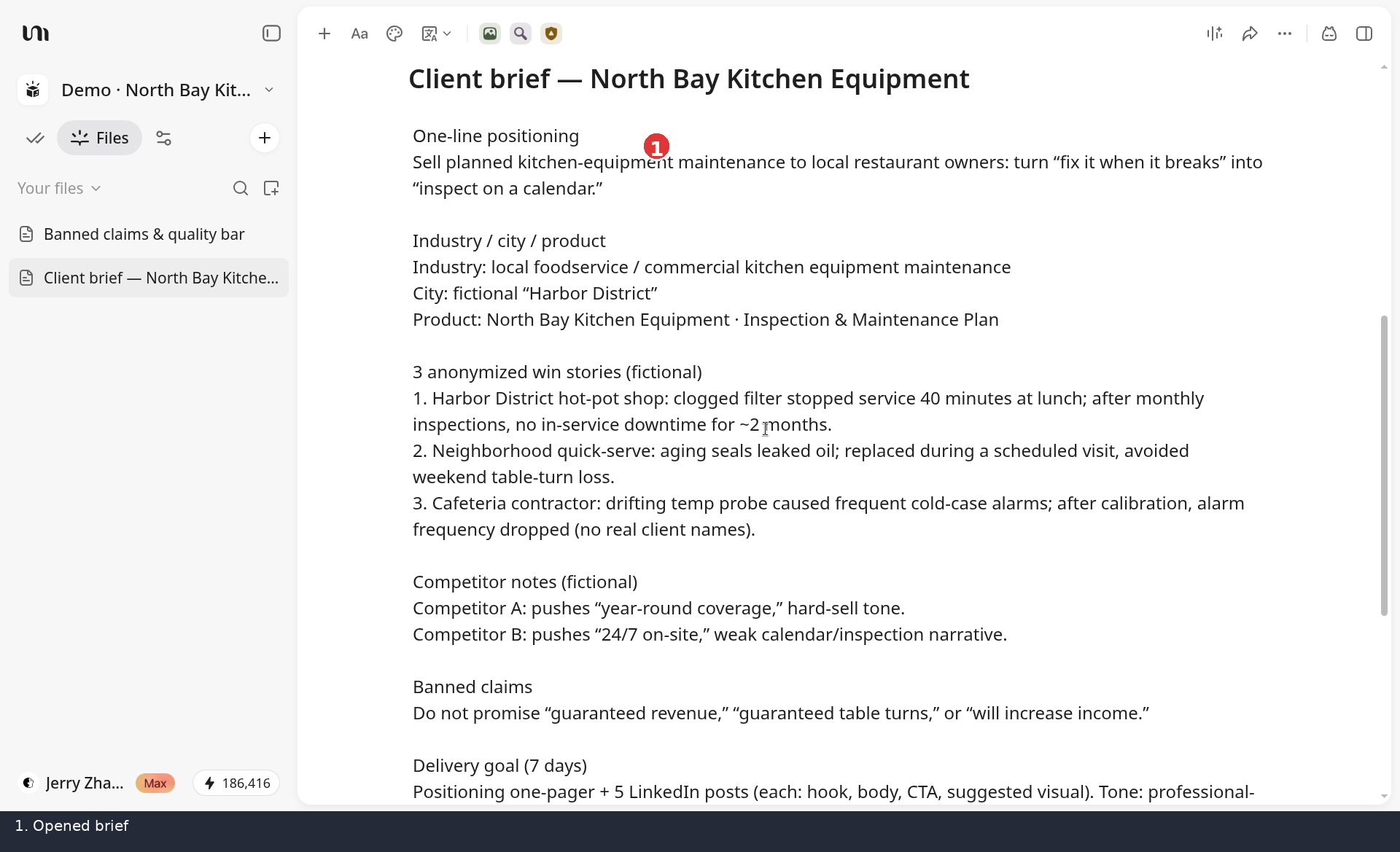
Opened client brief document
2. Draft the playbook in Chat
Use Chat on that Board to turn messy expertise into a clear sequence: questions → analysis → draft → QA checklist. Prefer structure over prose. If a step only works when you remember a trick from last time, write the trick into the playbook.
Run it once on a real (or realistic) client scenario. Fix what broke. That iteration is defining the method.
Note: in Ask / Chat mode, the first pack often stays in the chat thread. Saving Markdown (or other files) onto the Board is a separate step—or an Agent/write flow. Don’t assume Chat always writes Board documents for you.
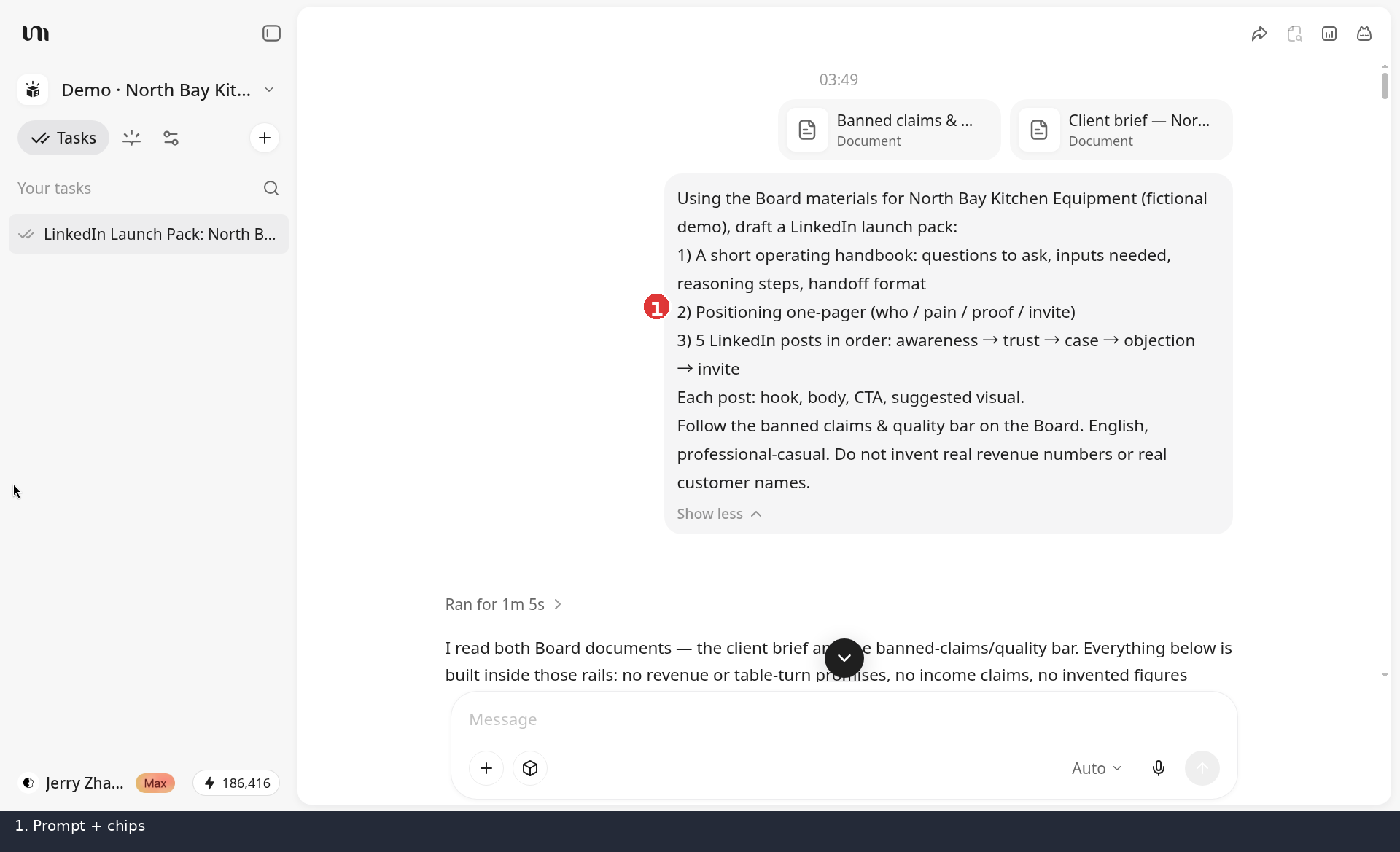
Chat prompt with Board material chips attached
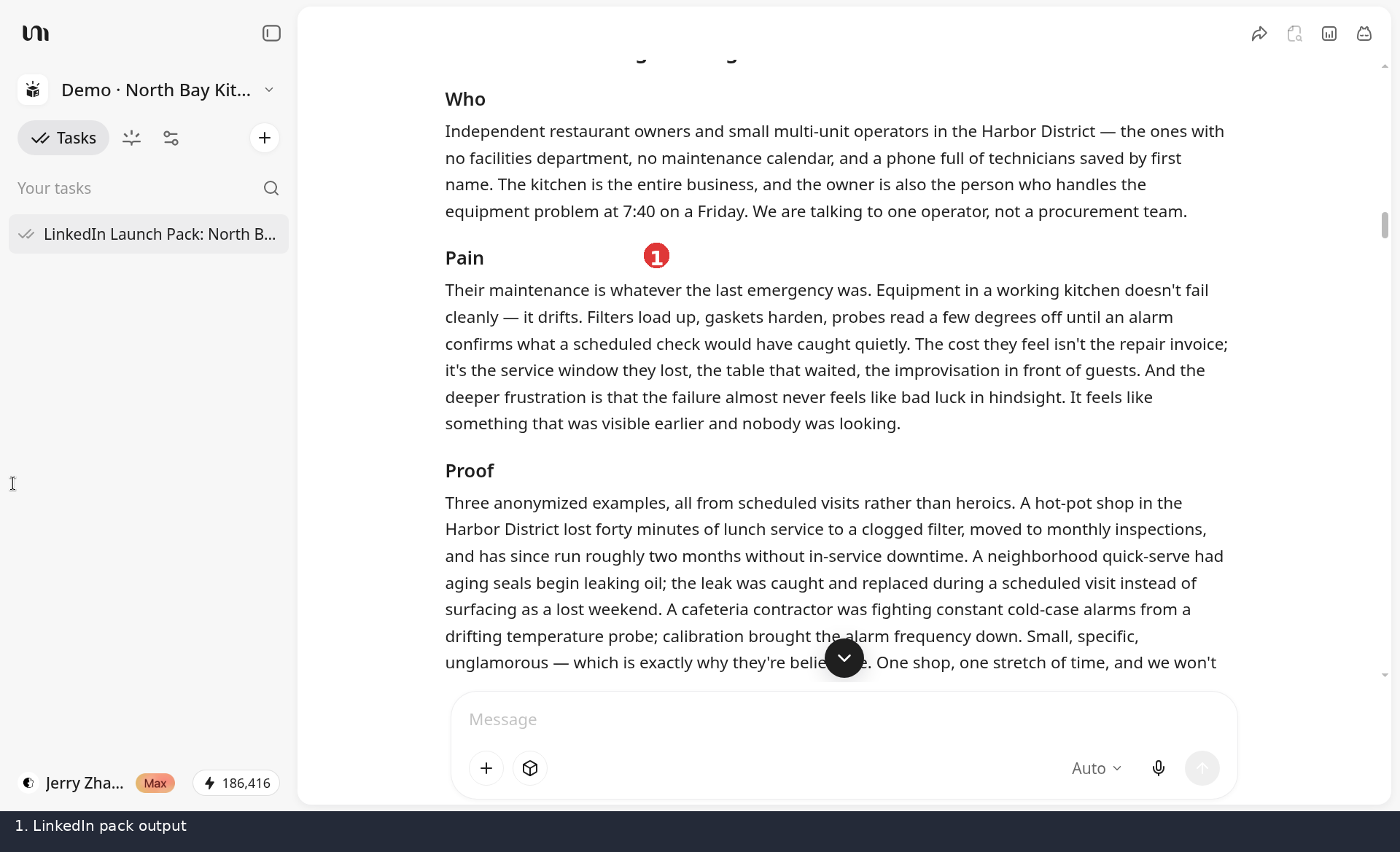
Positioning one-pager drafted in Chat
3. Package the playbook as a Skill — LinkedIn launch pack walkthrough
When Chat produces something you’d happily hand a client, package the method as a Skill: lock the stable steps and standards; leave topic, niche, offer, and materials as inputs. A Skill is not “a longer prompt.” It’s a working method you’ve tested until ordinary inputs still produce usable output.
Keep v1 narrow. “LinkedIn launch pack for local foodservice” beats “social Skill that does everything.” When you name it, remember the Skill title field caps at 40 characters—put detail in the subtitle or Instructions if the full name won’t fit.
Here’s the walkthrough. After a good Chat run you can ask the Agent: “Turn this into a Skill—fix the steps and QA, make client fields inputs.” In the demo we used Create skill → Create with YouMind and kept the Skill private (Only me).
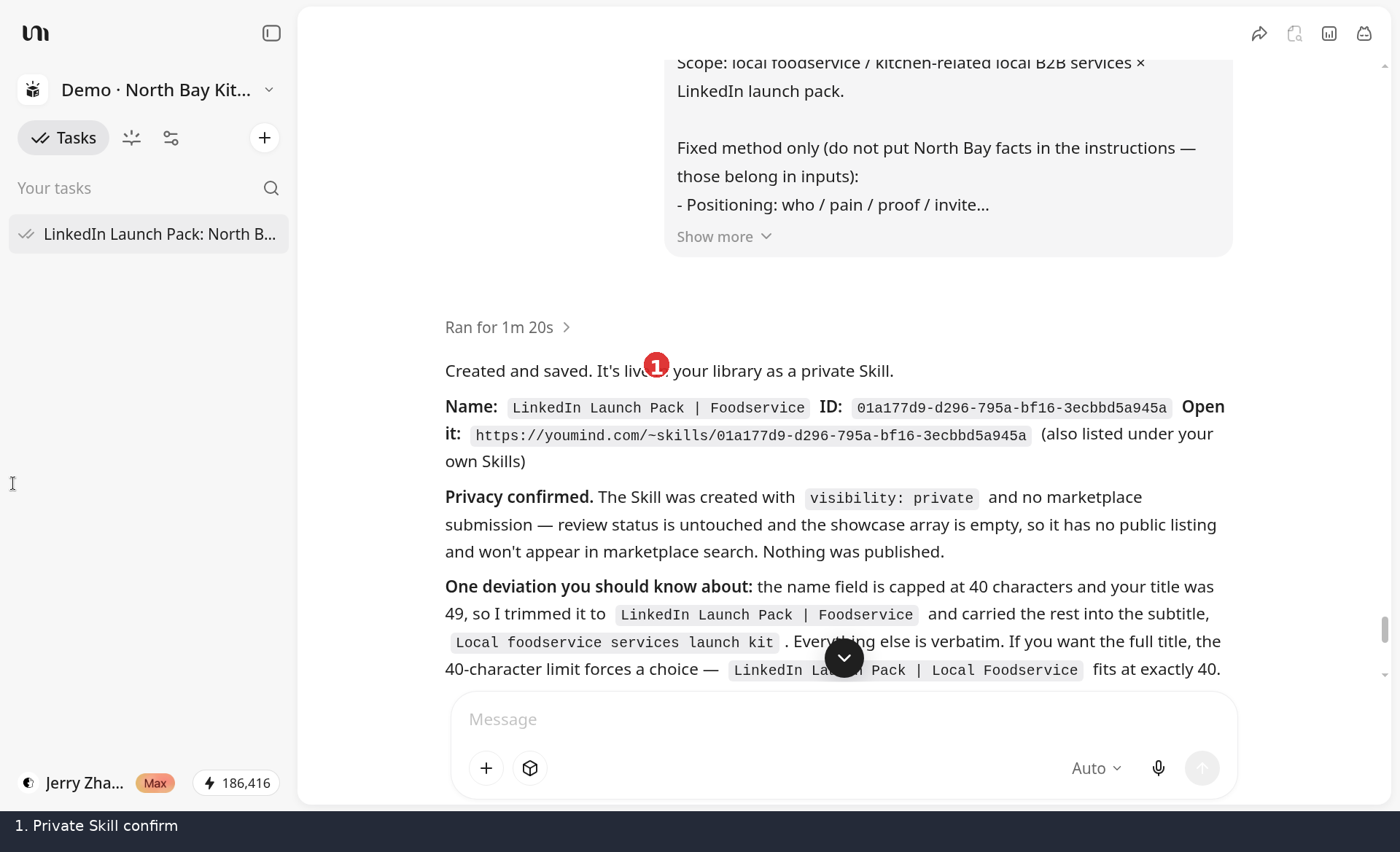
Confirm creating a private Skill from the run
Demo job
- Example client: North Bay Kitchen Equipment — selling kitchen-equipment maintenance to local restaurant owners
- Job: In seven days, ship a LinkedIn launch pack: one-page positioning + five-post sequence + a CTA per post
- What goes on the Board: one-line positioning, sample/anonymized win stories, competitor notes, banned claims (no “guaranteed revenue”)
Fixed method vs variable inputs
- Item: Structure · Locked into the Skill: Four-part positioning (who / pain / proof / ask), then five posts: awareness → trust → case → objection → ask · Swapped each run: Industry, city, product name, proof points, tone (formal / casual)
- Item: Steps · Locked into the Skill: ① Check material gaps and whether LinkedIn is chosen or buyers are active there ② Draft positioning ③ Generate five posts ④ Self-check against QA ⑤ Flag lines that need a human edit · Swapped each run: Whether stories, numbers, and names may be public
- Item: Output · Locked into the Skill: Markdown: positioning.md + posts-01…05.md; each post has hook, body, CTA, image note · Swapped each run: Language, platform specifics
- Item: Quality bar · Locked into the Skill: No unverified numbers; no client-private facts; one CTA per post; banned-claim list clean; first positioning line names who you serve and the main problem
Sample outputs
Positioning one-pager (excerpt)
We help neighborhood restaurant owners move kitchen equipment from “fix when it breaks” to “inspect on a calendar.” Proof comes from recent maintenance follow-ups (anonymized). Next step: book a 20-minute inspection assessment—not a year-long contract first.
One finished post (awareness)
Hook: An hour of kitchen downtime often costs more in lost covers than in parts. Body: Many shops treat repair as an emergency. Filters, seals, and probes have predictable windows. Shift from “call when it fails” to “inspect on a calendar,” and failures move off the dinner rush onto a time you choose. CTA: Comment “inspect” or DM your restaurant name and neighborhood—I’ll send a one-page checklist. Image note: clean kitchen corner + handwritten calendar (no real storefronts).
How inputs work in the product today
There is no separate multi-field Skill input form. Variable parts usually land like this:
- List “Inputs (user-filled)” in prose inside the Skill’s Instructions (industry, city, product, proof materials, tone, etc.);
- On run, the run composer shows an Input hint plus the skill chip;
- The user types this engagement’s values in chat, then runs.
Whether the channel still fits stays a step-① check—not a generic copy field. The table above is a method sketch, not form widgets. For screenshots, pair the run surface with the Skill detail page.
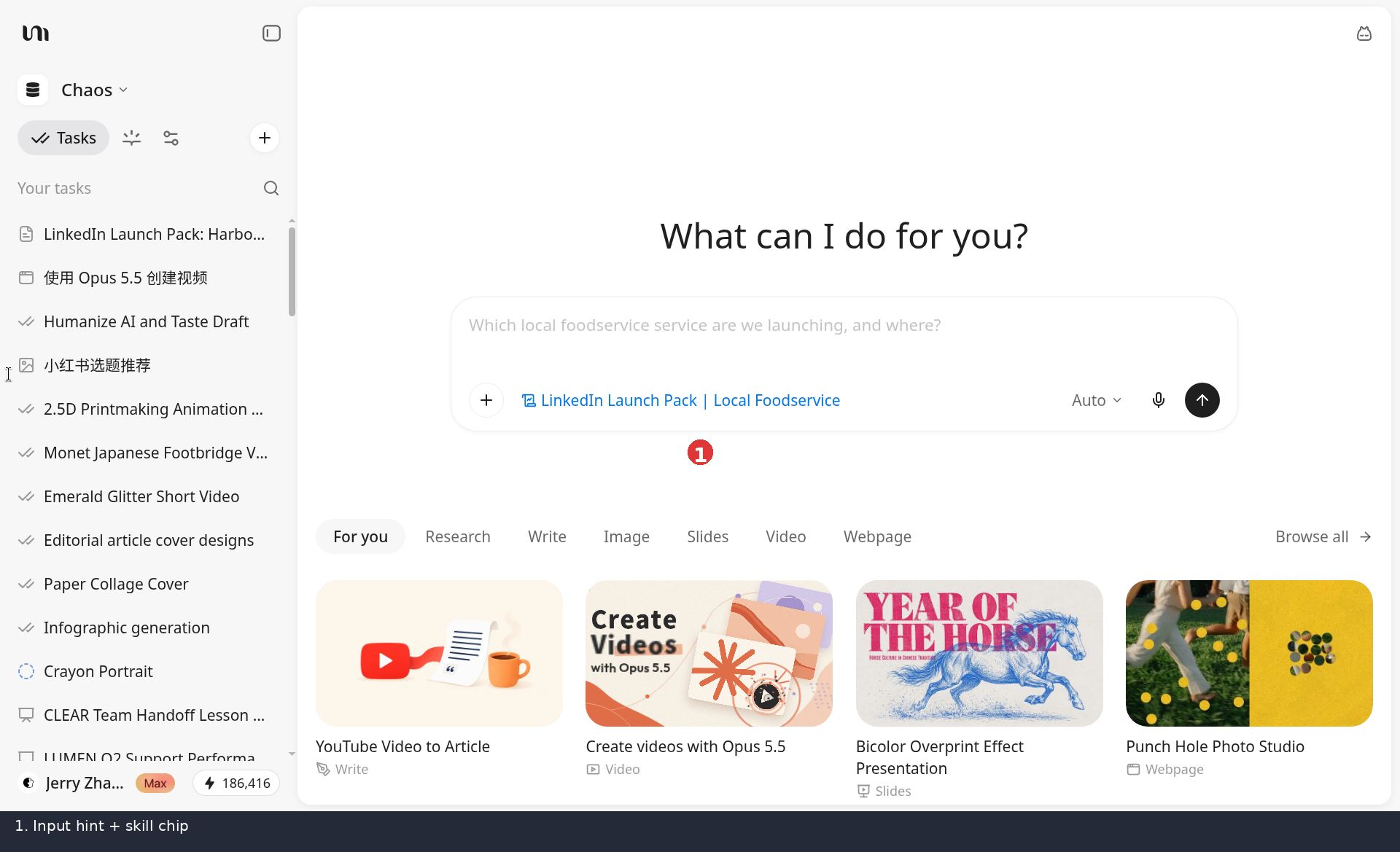
Skill run surface: Input hint + skill chip (no multi-field form)
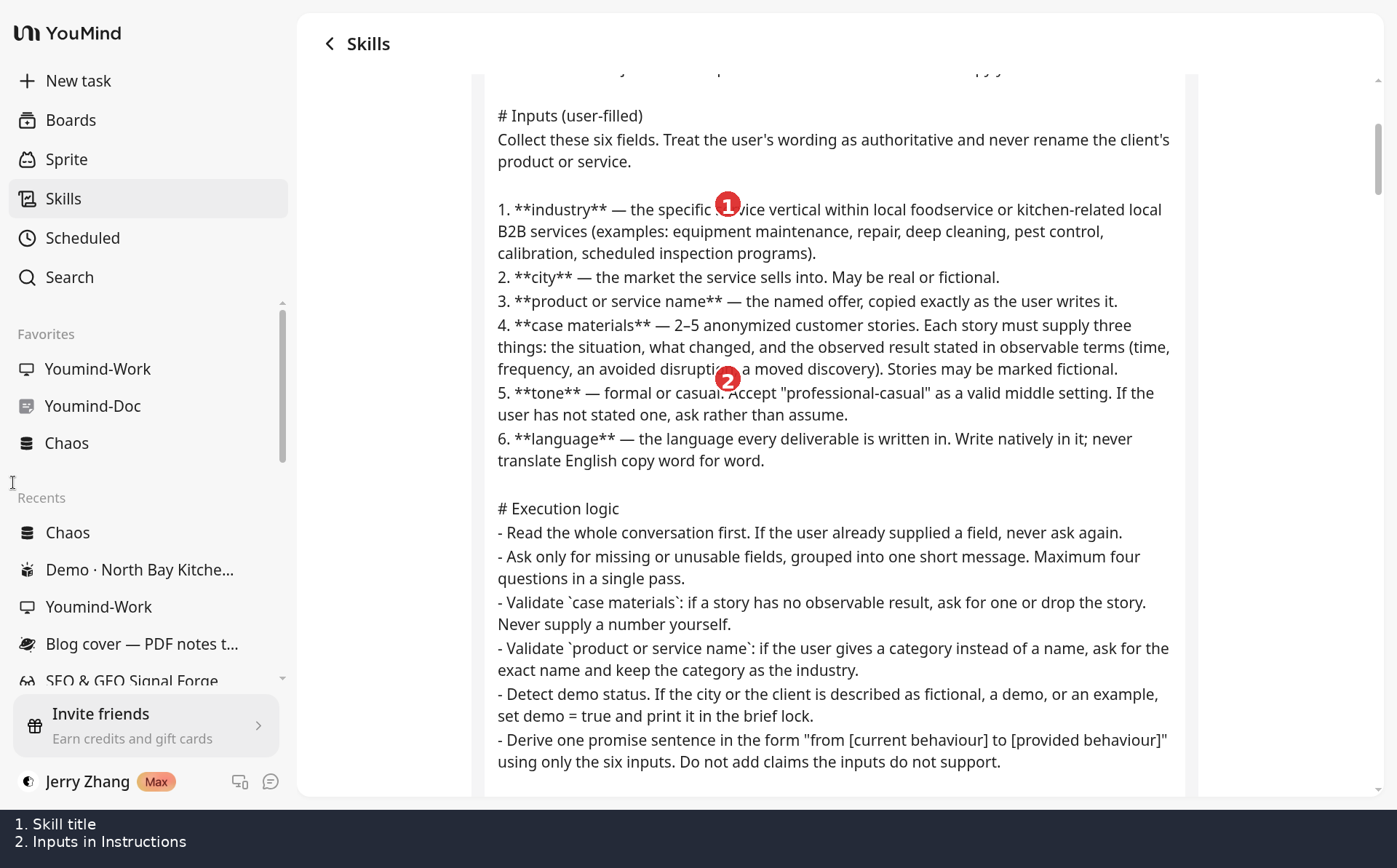
Private Skill detail: inputs listed inside Instructions
Same-scope client swap: keep / replace / still human
Next engagement still local foodservice—in the demo, example client Harbor District Kitchen Supplies:
- Action: Keep · What to do: Four-part positioning skeleton, five-post arc, QA table, ban on “guaranteed results” claims
- Action: Replace · What to do: Product name, proof, city, ask (book an equipment inspection → book a supplies trial)
- Action: Still human · What to do: Whether proof is public; whether the final voice sounds like you, not the Skill’s default
Before you lock the Skill: missing proof → ask or skip, never invent; prior-client facts out of the shared instructions; old company names and jargon moved into inputs.
4. How to test when the scene changes
Before you decide to publish, run at least one swap or stress test and write the pass bar.
Keep the “local foodservice × LinkedIn launch pack” Skill. Three small tests (sample inputs are fine). B is an out-of-scope boundary test: it’s not proving “swap the industry word and reuse as-is”; it’s checking whether the Skill still forces a run when it shouldn’t.
- Test: A. Incomplete materials · How you stress the inputs: Industry + one-line positioning only; no proof · Pass bar: Skill lists gaps and asks; the proof-dependent post must not bluff; other posts may draft · If it fails, change: Hard gate on the case post: skip or placeholder—never invent client stories
- Test: B. Cross-industry boundary (out of scope) · How you stress the inputs: Equipment maintenance → accounting compliance · Pass bar: ① Flag steps that don’t apply (default buyer portrait, hook bank, ask) ② Don’t keep the five-post structure by default ③ Check whether LinkedIn is still the right channel · If it fails, change: Add “Scope: local foodservice × LinkedIn”; out of scope → “fork or new Skill,” not a silent word swap
- Test: C. Tone change (in scope) · How you stress the inputs: Shorter, more casual · Pass bar: Five-post structure remains; length and diction shift; QA still passes · If it fails, change: Make length/tone inputs instead of baking them into the system prompt
The Harbor District reuse shot shows a same-scope swap under demo conditions. One successful demo proves those conditions—not time saved, revenue lift, or universal stability.
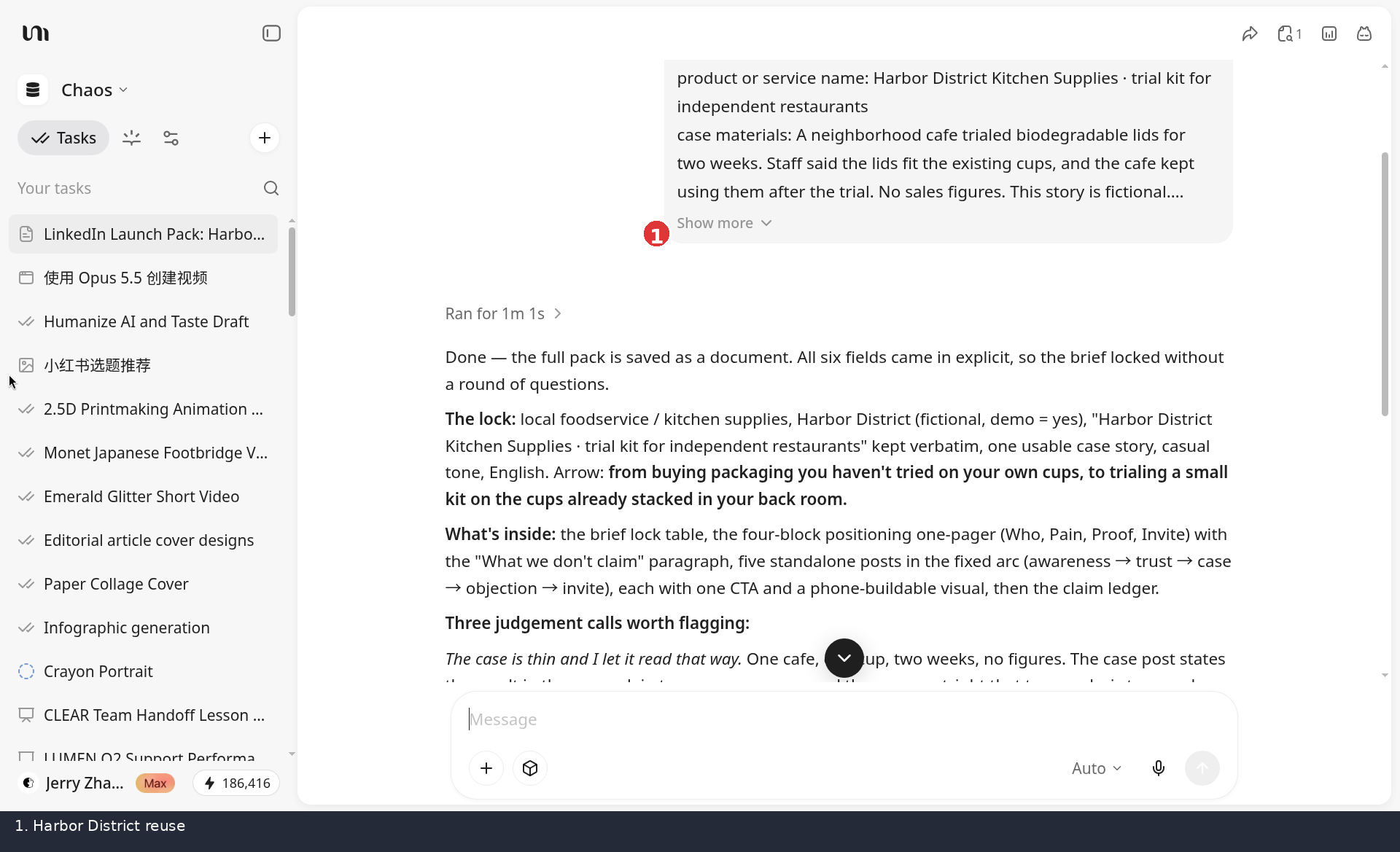
Reuse run for Harbor District Kitchen Supplies
5. Reuse—and optionally publish
After tests pass: open the Skill, swap inputs, take the first draft, then edit in your voice. Boards still hold this engagement’s materials; the Skill only carries the method.
Product tip: Run may open your last-used Board, not the Board where you created the Skill. Before a new client run, confirm you’re on the right Board (or switch), then go.
If the method helps people outside your practice, polish the title (≤40 characters), description, and real samples, then consider the Skill marketplace. Publishing is optional; incentives follow current product rules. For most consultants, private reuse that works is already enough—decide publish once, after testing.
What solo consultants are really paying for twice
Solo operators rarely waste time on typing. They waste it re-deriving judgment: which questions to ask, which ranking criteria matter, which CTA fits the channel, which QA gates catch weak drafts.
Skills store those question lists and checks. Boards keep each engagement’s materials separate. Chat remains the workshop for methods that aren’t fixed yet. Together, the unit of work shifts from “another blank chat” to “another run of a written process.”
You don’t need to become a full-time Skill creator. You need one playbook that used to restart from zero—and no longer does.
Try it on one real workflow
If you keep reinventing the same client workflows, run the loop once on a real job: capture → draft in Chat → (optional) ask the Agent to help package a Skill → test with incomplete inputs, and once out of scope if needed → swap inputs inside scope; only then decide whether to publish.
Explore Skills and Boards at youmind.com, and read the Skills creator guide. Pick one client process you’ve done twice and run the five steps—usually a better hour than another blank chat.
Have questions about this article?
Ask AI for FreeRelated Posts
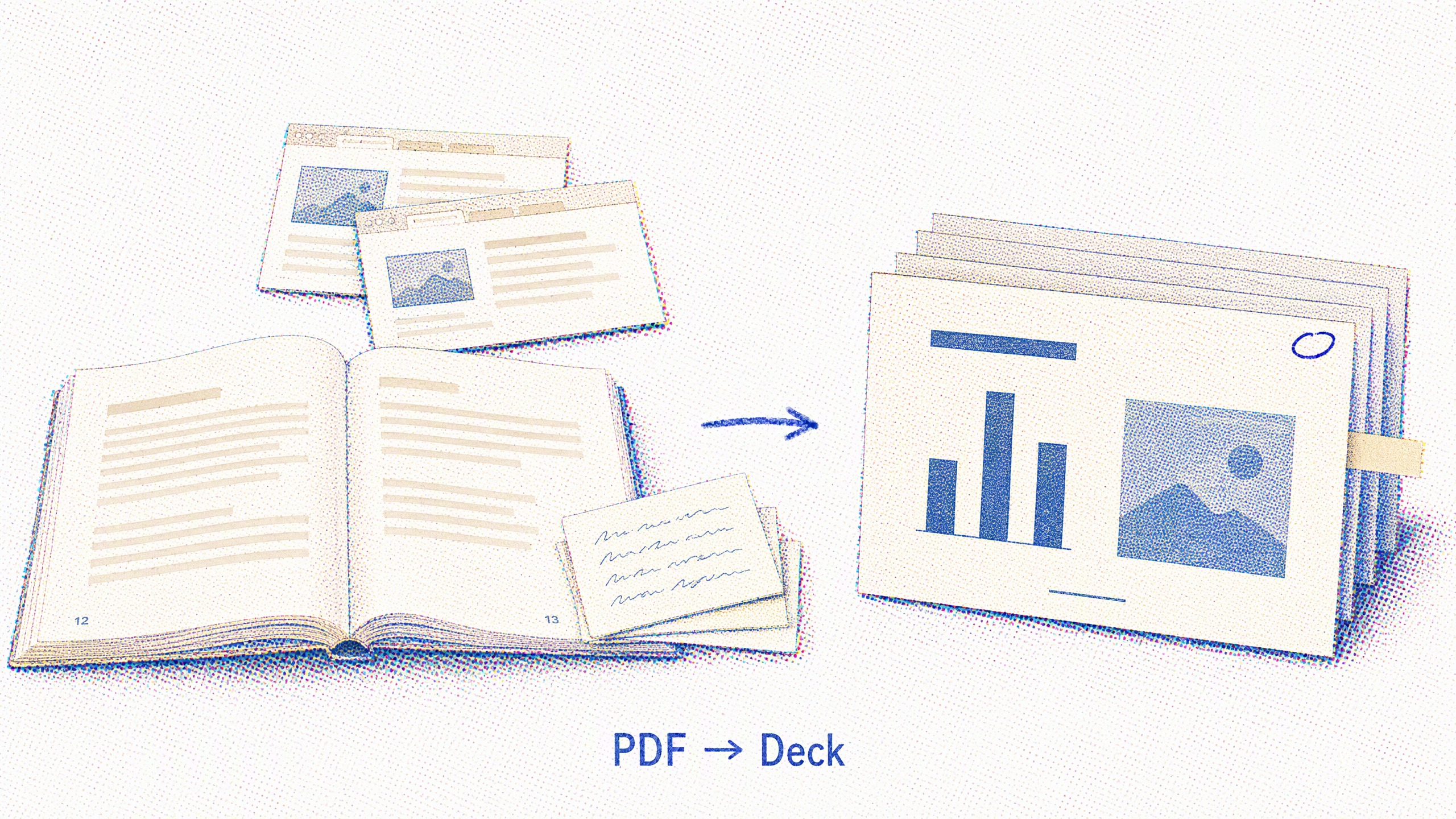
How to Turn a PDF, Web Pages, and Notes into a Client Deck with YouMind (Full Walkthrough)
Related: Choosing a presentation Skill → . Finishing a deck from your materials → this piece. You already have a PDF report, two reference pages, and your own notes. You need a deliverable briefing deck in a few hours—not another five-step overview of “collect → outline → generate → edit → export.” This article runs one real YouMind case end to end: source list, what we cut, what the first draft got wrong, page-level fixes, a style choice we rejected, and export limits you should know before you promise “editable PowerPoint.” When you’re done, you should be able to rerun the path with your PDF and notes—and know what to fix after generation. Scene (fixed): a knowledge-worker / advisor-style internal briefing. In this demo, the briefing asks which two AI workflows a small content team could test next month. We don’t expand into student, pitch, or training use cases here; for Skill/style shopping, use the collection linked above. Sources Board: (private). Final file: . Write these down first. Every later cut hangs on them. One more call in this run: the original task note and preliminary outline were Chinese. Before generating slides, delivery language locked to English; the English Project Brief supersedes the earlier note. Getting PDF, pages, and notes onto one Board is the easy part. The outline is where time goes—selection, not layout. Dropped (on purpose, with a record) Only two facts survived onto the slides Different denominators stay on separate panels. We never merge them into a savings claim. Outline gate: one claim per slide; flag missing evidence; keep it to eight slides for a ten-minute talk. If you still need to pick a style or Skill for a different job, use the and the . Scheduled Tasks and “same Board, other formats” get at most one sentence in this piece—they’re not the spine. First Draft already had a full eight-page English spine—and still wasn’t shippable. Tone polish doesn’t fix that. You fix it against the sources. Everything below comes from the Board’s Revision Log—real edits, not a retrofitted best-practices list. Stanford wasn’t only dropped in notes. The final deck’s source-check strip states body unavailable → Excluded. In a citation workflow, the honest output is often “unverified,” not a fabricated page. There was a second discard on style: the Soft-Glow restyle fully generated and was not selected. The log records two HTTP 404s when cancel was attempted, so the job kept running—that’s a failed cancel, not a calm A/B. Don’t rewrite it as intentional dual delivery. Claim locked: approved copy is the boundary; the AI does not edit the original. Slide 3 (Pilot 1), Round 1 - Microsoft WTI 2026 → p.08 → 49% of classified goals - Anthropic Cadences → Ch.2 artifact uses → 20% of work conversations - Stanford AI Index → body unavailable → Excluded Round 3 (image inspection after export): a center mini-table reintroduced fake locators (“p.12”, “§ 3.1”). Fix: remove the mini-table entirely; replace with an unlabeled hand-drawn paper stack; keep the real three-row strip below. After Round 1 content passed, the paper/ink draft read as too plain—argument strong, layout weak. So: Content held constant through restyle: 49% denominator wording, two separate fact panels, Stanford excluded, Pilot 2 empty proposed outputs, unmeasured metrics, TBD owner, stop rule labeled proposed. The PPTX from this deck is one raster image per slide (e.g. 2560×1440)—no editable text objects, no speaker-notes track. Changing a word means regenerating that page image and swapping the segment. Narration lives in Research Notes; present from there. Footnotes readable on a laptop may fail at the back of a room. For where buttons and export formats live, use the product page: . Don’t describe this file as a normal, text-editable PowerPoint. How do you turn a PDF, web pages, and notes into a report PPT with AI? Put sources and a clear audience/claim into one workspace → produce a reviewable outline (one claim per slide) and pass it → generate a first draft via conversation or a Skill → edit titles, cut noise, and re-check numbers against sources → confirm what export actually gives you, then deliver. The point isn’t one-shot perfection; it’s traceability, an approved outline, and human correction after generation. What do you usually fix after AI generates a PPT? Four recurring moves: (1) drop sources that don’t serve the claim or aren’t readable; (2) rewrite vague titles into conclusion-style claims; (3) verify figures and citations in the original PDF or page; (4) adjust for the real export shape—if slides are full-page rasters, plan to regenerate a page when a word is wrong. How is this different from upload → generate → export on the tool page? The tool page shows the capability path. This article shows decisions and before/after on one material set so you know where to stop and edit. Buttons live on the ; shippability lives in the edit checklist. Still comparing vendors? See . Open a Board with one of your own PDFs and notes. Run the same checklist: three questions → outline cuts → generate → fix at least one title and one number against the source. Stuck on Skill choice? Return to the . Need the product path? Use the tool page.

Instantly Recognizable: Use Image-to-Prompt to Create a Consistent Brand Visual Style
Take your last ten images and line them up. If they look like they belong to ten different brands — one cool and minimalist, another warm yellow hand-drawn, and the next suddenly high saturation — the problem isn't whether any single image looks good. The problem is that they're each telling a different story. In a feed flooded with content, what makes people remember you isn't a single stunning image, but a sense of continuity that makes them think, "I know it's you before I even see the handle." And that continuity isn't a talent — it's a system. Visual consistency sounds like something reserved for big brands and professional designers, but at its core it's actually quite simple: the same lighting, the same color palette, the same medium texture, the same composition, repeated until it becomes your identity. The hard part is never "making one good-looking image" — it's "making the hundredth image still look like it belongs in the same family as the first." And ironically, AI image generation tools have made this harder. The very thing that makes text-to-image so appealing is precisely what makes it dangerous for branding: every generation is a little different. The same prompt, "warm, healing illustration style," might give you creamy soft light today and a rich orange-red intensity tomorrow. The same "minimalist product shot" might come out with a pure white background this time, and inexplicably add a shadow next time. The model reinterprets your vague description from scratch each time, and it never really internalizes what "your brand should look like" in your mind. So you fall into a familiar loop: you describe each image from zero, it's always a bit off, you settle and post it, and months later you look back and your account looks like it was managed by three or four people with completely different aesthetics. is often used as a simple tool to "reverse-engineer how an image was made." But in the context of branding, it does something far more important: it takes a visual style you can recognize instantly but struggle to describe, and fixes it into a block of text you can copy and reuse. The approach is simple. First, pick a "style anchor" image that represents your brand's vibe — it could be your best-performing post, a reference image you keep coming back to, or a baseline image you specifically created for this brand. Feed it to the tool, and it will "read" that image into a structured description: what the subject is, where the light comes from, whether the color palette is cool or warm, whether it's photography or illustration, the depth of field and texture, and the overall mood. This description is the textual version of your brand's visual DNA. From now on, you don't have to rewrite from scratch by feel every time. You hold a template you can reuse as-is. In an extracted prompt, some elements are your brand's constants, and some are just the content of that particular image. Separating them is the key to the whole method. What you should lock down usually includes these: the color palette — the set of hues that makes people recognize you at a glance; the lighting — soft morning light or hard side light; the medium texture — realistic photography, semi-realistic illustration, or 3D rendering; the composition habit — lots of negative space, subject centered or off-center; and the overall mood — calm, crisp, or vibrant. Together, they are the part that makes people say, "I recognize you before I even see clearly." What you should swap each time is just the content itself: this time the subject is Product A, next time Product B; this image is about a breakfast scene, that one about a desk. You preserve the "genes" of your style, replace only that one variable, and regenerate — the lighting and color palette carry over, and only what you changed actually changes. That is the real dividing line between "producing a whole set of images that belong to the same brand" and "gambling on luck from scratch every single time." The real test of brand visual consistency isn't a single image — it's across contexts. A blog post cover, a set of social media images, an external PPT — if they all have different styles, even great content feels fragmented. With that fixed prompt, you can spread the same visual language across every touchpoint: use it to generate a blog cover that carries your brand's tone, create a set of images for social posts that look like they belong together, and even set a unified look for illustrations in your presentations. In YouMind, starting from this prompt, you can flow through all these tasks seamlessly — covers, supporting images, and slides share the same light and color palette, instead of each going its own way. Since a prompt is plain text, it works across different tools: Nano Banana Pro, GPT Image 2, Midjourney, and Stable Diffusion can all read the same description. Your brand style isn't locked into one model. There's a line worth drawing clearly. Drawing inspiration from an image's lighting, composition, and atmosphere is healthy. But if your "style anchor" comes directly from a competitor's signature visual, a copyrighted famous character, or another brand's logo, and you use it as your own face — that slides from "building a style" into "impersonating an identity." Generic "style" isn't owned by anyone, but a brand's specific, recognizable expression is its own asset. So the safest approach is to anchor on your own material — your products, your scenes, your baseline — and then use the extracted prompt to systematize and scale it. Every image you produce will then be both consistent and genuinely yours. In the past, brand visual consistency relied on a designer who remembered every detail, or a style guide nobody wanted to read. Now, you can compress it into a block of text: extract once, reuse repeatedly, swap only what needs to change. The next time you need an image for new content, you don't have to gamble on luck staring at a blank prompt box. You already know what your brand looks like, and you can make it look that way every time. How does Image to Prompt help with brand visual consistency? It translates an image that represents your brand's vibe into a structured prompt. You lock down the color palette, lighting, medium, and composition, and each time you only replace the subject or scene. The output images will always maintain the same style. Which image should I use as a "style anchor"? Your own material is safest: your best-performing post, a baseline image you specifically created, or a finished image that best represents your brand's vibe. Try to avoid using competitors or copyrighted characters as anchors. Can this prompt be used across different AI tools? Yes. The output is plain text, and mainstream text-to-image tools like Nano Banana Pro, GPT Image 2, Midjourney, and Stable Diffusion can all use it directly. Your brand style won't be locked into one model. Will it make every image look exactly the same? No. It locks down the stylistic constants, but the content is still different each time. The goal is to make them look like "one family," not to copy-paste the same image. Do I need experience in design or prompt writing? No. The extraction step translates visuals into text for you. You just need to decide which elements are your brand constants and which ones to swap, and you can start reusing.
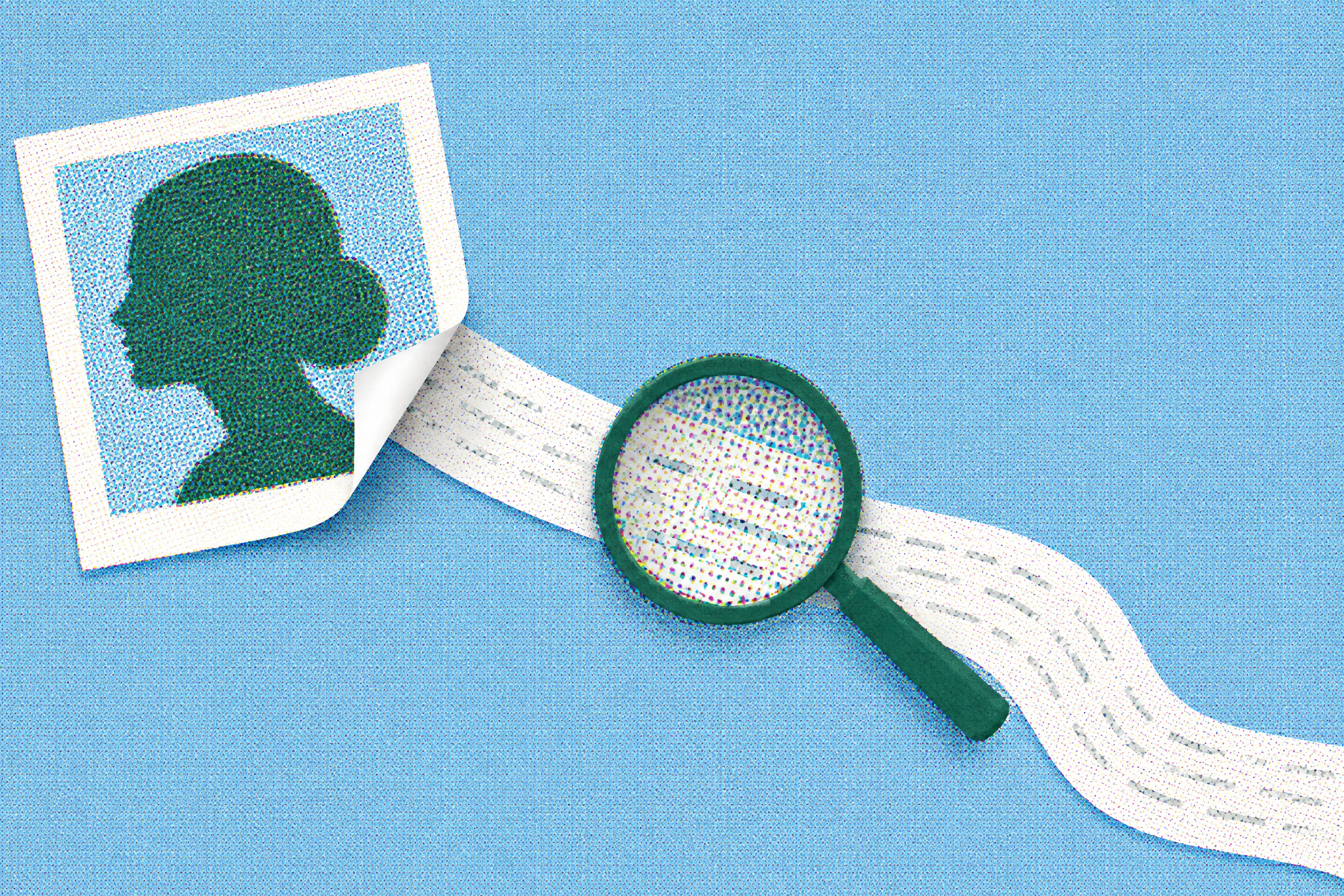
Turn an Image into Reusable AI Image Generation Prompts
You've probably had that moment: you're scrolling, you see an image, and you can't look away—the lighting, the color palette, the atmosphere you've been searching for weeks, all captured in one frame. You want to create something similar, so you open your AI image generator, stare at the blank prompt box, and type something vague like "cinematic photo, nice lighting, full atmosphere." The result? Something that has nothing to do with the image you had in mind. The problem usually isn't your taste—it's the translation. Reversing a finished image back into the text that could recreate it is genuinely difficult. It requires a specialized vocabulary around composition, camera angles, lighting, color schemes, and style—a vocabulary most people never get the chance to build. That's exactly what the does for you: feed it an image, and it gives you back the text. This article will explain what it is, when it works well, where it falls short, and how to get your first prompt in seconds. Image to Prompt is the reverse of text-to-image. Normally, you write a description and the model generates an image. Here, you give the model a finished image, and it writes the description—the prompt you would have needed to input to get that image. You might have heard it called different things: reverse prompting, prompt extraction, image-to-prompt, or simply "reverse engineering prompts from images." The names vary, but the task is the same: converting visual information into a structured, reusable text description that any text-to-image tool can understand. A useful extraction goes far beyond something as vague as "a cat." It captures the elements that truly define an image: You upload an image, and the tool "reads" it like a trained eye, identifying the elements that truly determine the visual impact: subject and composition, direction and quality of light, overall color palette, style and medium, and technical details like depth of field and texture. Then, it translates what it sees into precise language, assembling a coherent, ready-to-use prompt. A certain light becomes "soft morning sunlight," a certain tone becomes "warm, semi-realistic style." In seconds, you have a prompt you can use immediately. In YouMind, you can use it as a starting point to create an article cover or even generate illustrations for a presentation. But remember: this output is a solid first draft, not gospel. It's the tool's best attempt at interpreting the image, which is exactly what the next section will address. Here's a complete real-world run. First, you upload a reference image (in this case, a softly lit illustration of a person holding a white cat). The upload card will show: file ready, ready to process. Click Generate Prompt, and here's the actual output: See? It goes far beyond "a person holding a cat." It specifies the light direction, color palette, depth of field, composition, and mood—exactly the factors that determine whether your next image will match the reference. Along with the prompt, the tool provides clear next steps: generate it as-is, replace one element while keeping the original composition, or reuse the look for covers or social media graphics. From here, you don't have to start over—just change one variable. Swap the white cat for a dog, change the sweater color, or move the scene to a reading nook, then regenerate. The composition and lighting will carry over; only the element you changed will be different. You keep the "DNA" of the reference image—its lighting, framing, and atmosphere—while the final result is unmistakably your own. Most image-to-prompt tools stop at "here's a description"—and that step is now basically standard. Where YouMind's truly shines is what happens after you get the description: It's best at single, clear subjects: portraits, product shots, landscapes, and images with a consistent, recognizable style. Clean, well-lit reference images especially tend to yield equally clean prompts. In a few predictable areas, it becomes unreliable. Busy, multi-subject compositions can confuse it about which element the prompt should emphasize. Abstract art is difficult to reduce to text and will always lose some essence. Text-heavy images (posters, infographics, memes) often return garbled or hallucinated text, because vision models aren't great at transcribing text. And, like any AI model, the extraction tool can hallucinate: it might confidently describe a material, brand, or detail that isn't actually in the image. So treat the output as a draft to be verified against the original image, not a verbatim record: read it, delete what's wrong, keep what's useful. In about ten seconds, you can extract a prompt. Extracting a prompt describes a style; it doesn't transfer ownership. Used well, it's a tool for learning and ideation—a way to understand why an image works and to create something new in the direction you admire. Used carelessly, it slides into plagiarism. A reasonable line is: draw inspiration from the lighting, composition, and atmosphere, but don't replicate a living artist's signature work, a copyrighted character, or a brand logo and pass it off as your own, especially for commercial use. A general "style" belongs to no one, but a specific, recognizable expression can be owned. That's exactly what the "replacement" workflow is for: swap the subject, scene, or angle, and make the result truly yours. Is the Image to Prompt tool free? Yes. You can upload an image and generate a prompt on YouMind without paying. What image formats are supported? JPG and PNG, among others, covering most photos, screenshots, and exported images. Which AI tools can the generated prompts be used with? Any text-to-image model. The output is plain text, so it works with Nano Banana Pro, GPT Image 2, Midjourney, Stable Diffusion, DALL·E, and more. Will it recreate the exact same image? No, and that's intentional. It gives you the prompt behind the style so you can generate your own version, not a pixel-for-pixel copy. Do I need experience writing prompts? No. The whole point of image-to-prompt is to save you the manual writing step. You can refine the result, but you don't have to start from scratch. The next time an image stops your scroll, you don't have to guess the text behind it, and you don't have to just copy it. , shape it into what you want, and create something truly your own.