Most people use Claude like a smarter search bar.
- type something in
- get something back
- close the tab.
That's maybe 10% of what it can actually do.
The nine features below are the other 90%.
None of them are hidden. They're all in the product.
But based on everyone who uses Claude over the past year almost nobody touches them.
If you're paying for Pro and haven't set up even three of these you're paying for a product you're not using.
1. Projects
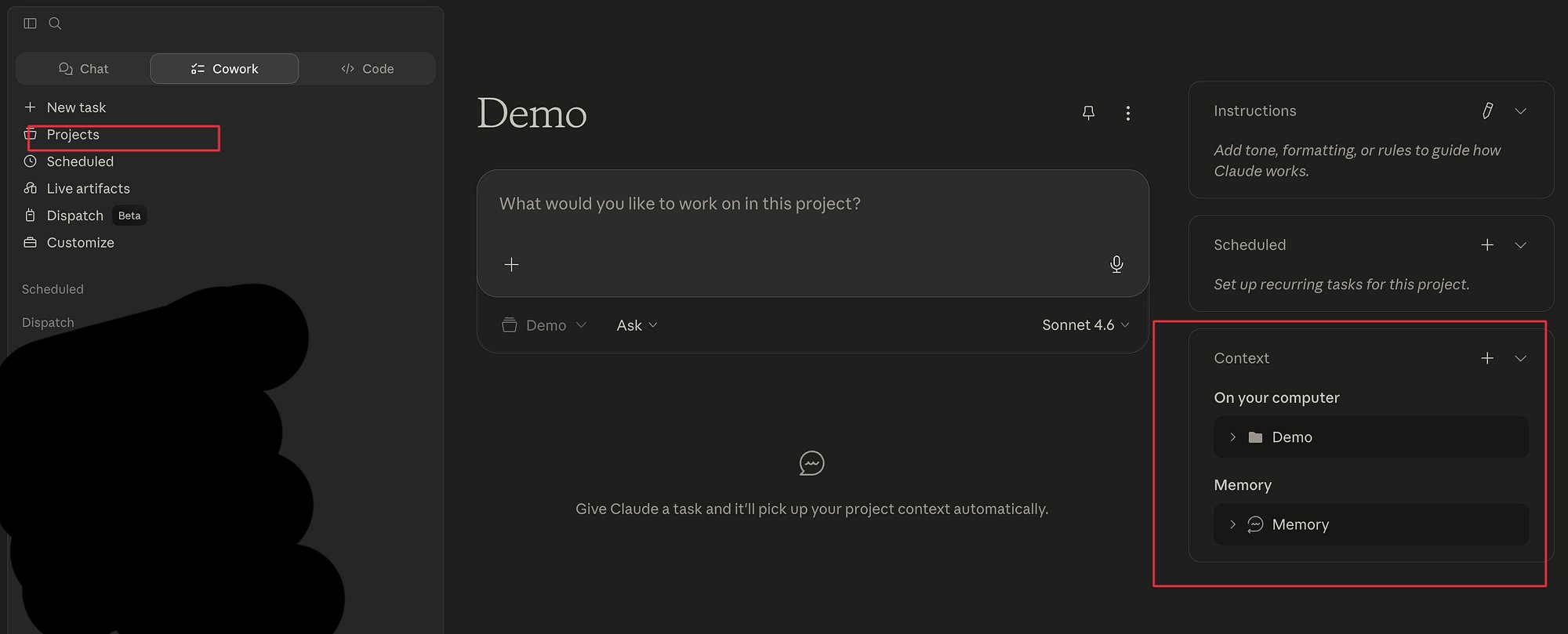
A Project is a workspace where context doesn't disappear.
Every chat inside a Project shares the same instructions, uploaded documents and history.
Close the tab, come back the next day & everything is still there.
The standard Claude chat is stateless.
Start a new chat & claude knows nothing about you.
A Project is stateful. The files you upload stay.
The instructions you write run in every single conversation.
Here's how to set it up properly:
1Blog Writing: style guide, banned words, past article summaries2Dev Work: architecture notes, coding conventions, current sprint context3Client Work: briefs, brand notes, feedback from past deliverables4Research: saved papers, notes, open questions5Personal Admin: template prompts for recurring tasks
The most underused part of projects is the project Instructions field.
it's a persistent set of rules Claude applies to every chat in that Project.
Before projects the same 40-line context block gets pasted into every new chat.
Projects kill that entirely.
2. Artifacts
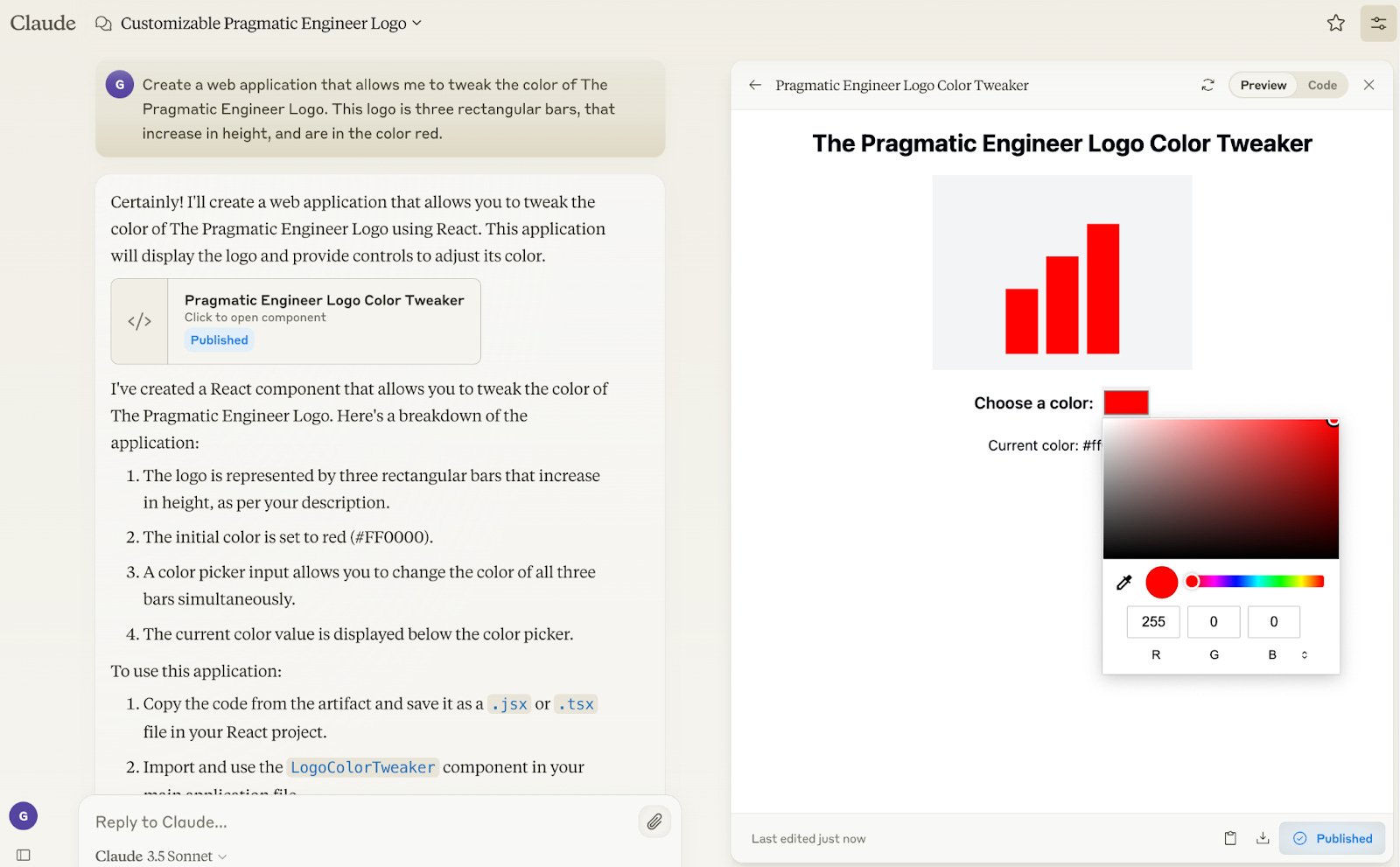
Most people treat Claude's outputs like one-shot docs.
Claude writes the draft.
Copy it. Paste it somewhere else & never come back.
An Artifact is a living output that stays inside Claude's interface and can be iterated on across sessions.
Code, documents, plans, HTML (all of it can live in an Artifact)
The real use case is maintaining smh over time.
Working outlines for articles, updated across multiple sessions over weeks, with Claude holding context from every revision.
That's what Artifacts are for.
That's different from starting a new chat and pasting a stale draft copied from Notion. The Artifact carries the revision history.
Claude knows what changed and why.
If anything goes through more than one draft (articles, specs, pitches, proposals - Artifacts are where that work should live_
3. Custom Styles
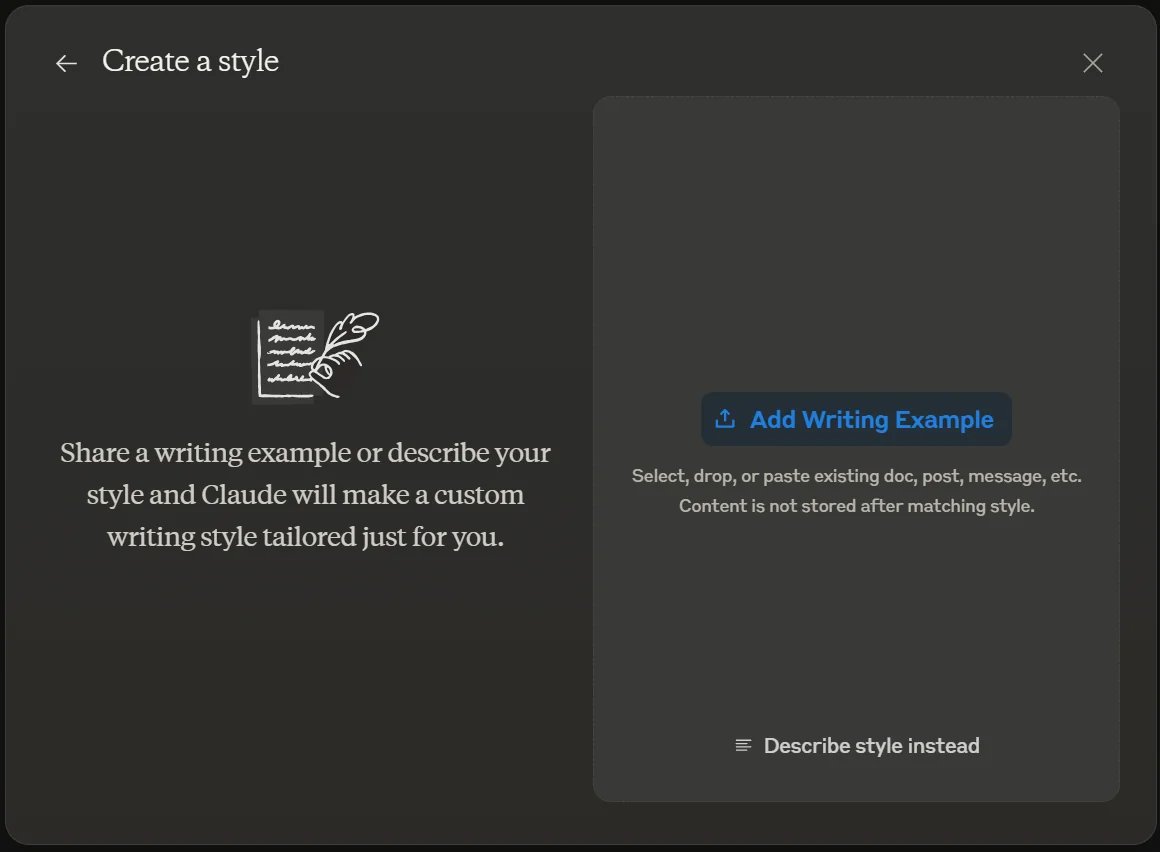
Claude's default tone is built for the widest possible audience.
that's fine for first-time users.
For anyone with a specific voice or format preference it creates editing work on every single response.
Custom Styles let you save a set of formatting & tone rules that apply to every reply.
Set it up once. Every response follows it.
Here's what a solid custom style looks like:
- No bullet points unless explicitly asked
- Max 3 sentences per paragraph
- No hedging language
- Active voice only
- No bold headers in conversational replies
Skip the intro paragraph that restates the question
The difference between a default Claude response & one running through a custom style is about 20 minutes of editing per response.
Across everything in a week that's hours back.
Find it in Settings → Profile → Custom Styles on claude.ai.
4. Memory
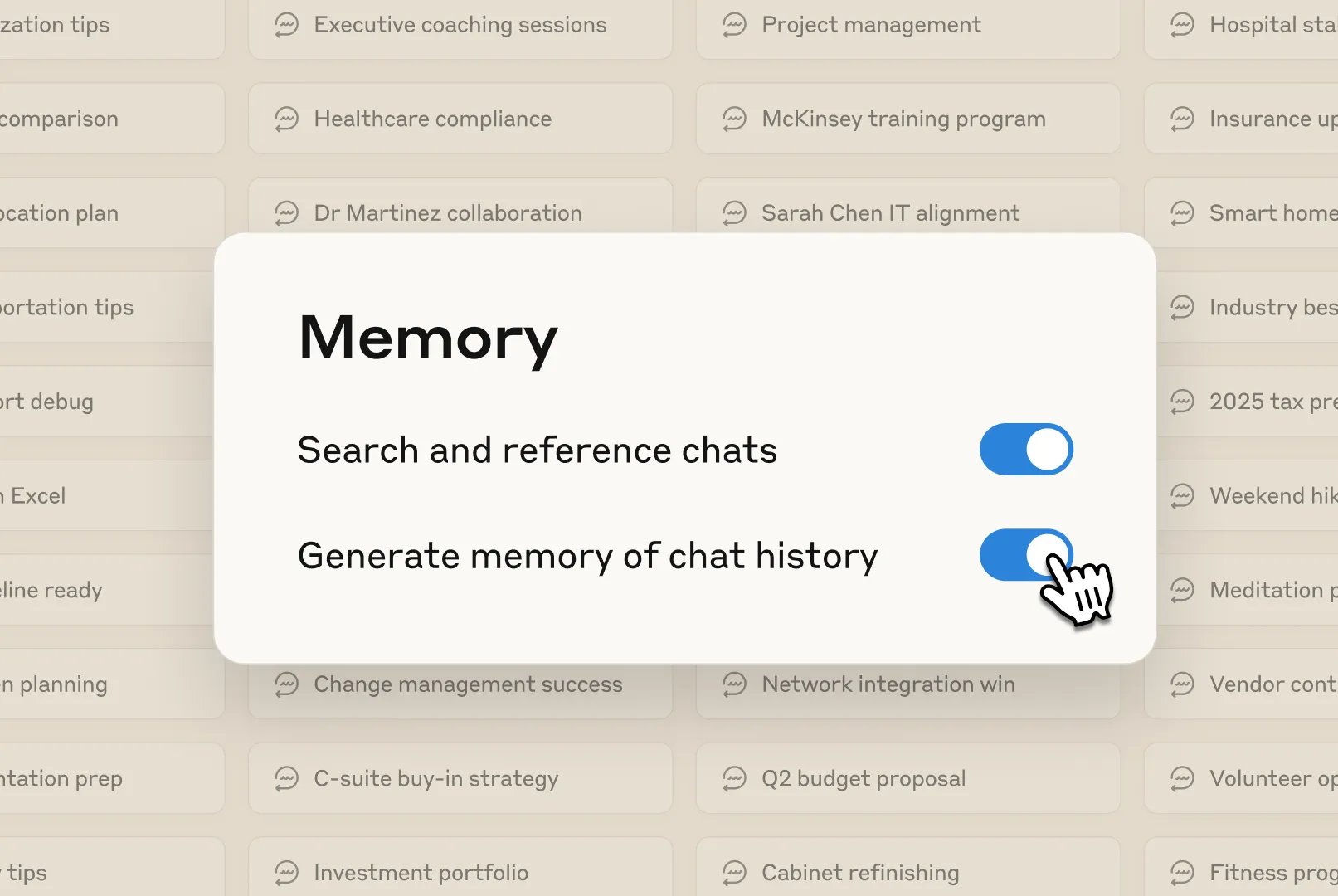
Claude maintains memory across sessions when Memory is enabled.
it stores details mentioned explicitly and things it picks up from context (role, ongoing projects, preferences)
The deliberate saves matter most.
Tell Claude exactly what to remember:
1"Remember: this project targets API 26 minimum and uses Kotlin 2.0"2"The main module is called MINI not main"3"Standup is at 9am every weekday"
Claude logs it.
it shows up in future sessions without re-explaining anything.
What to keep out of memory: don't store things that change frequently. Current tasks, in-progress work and time-sensitive context belong in Project chats.
Save facts that stay true for months.
5. Connectors
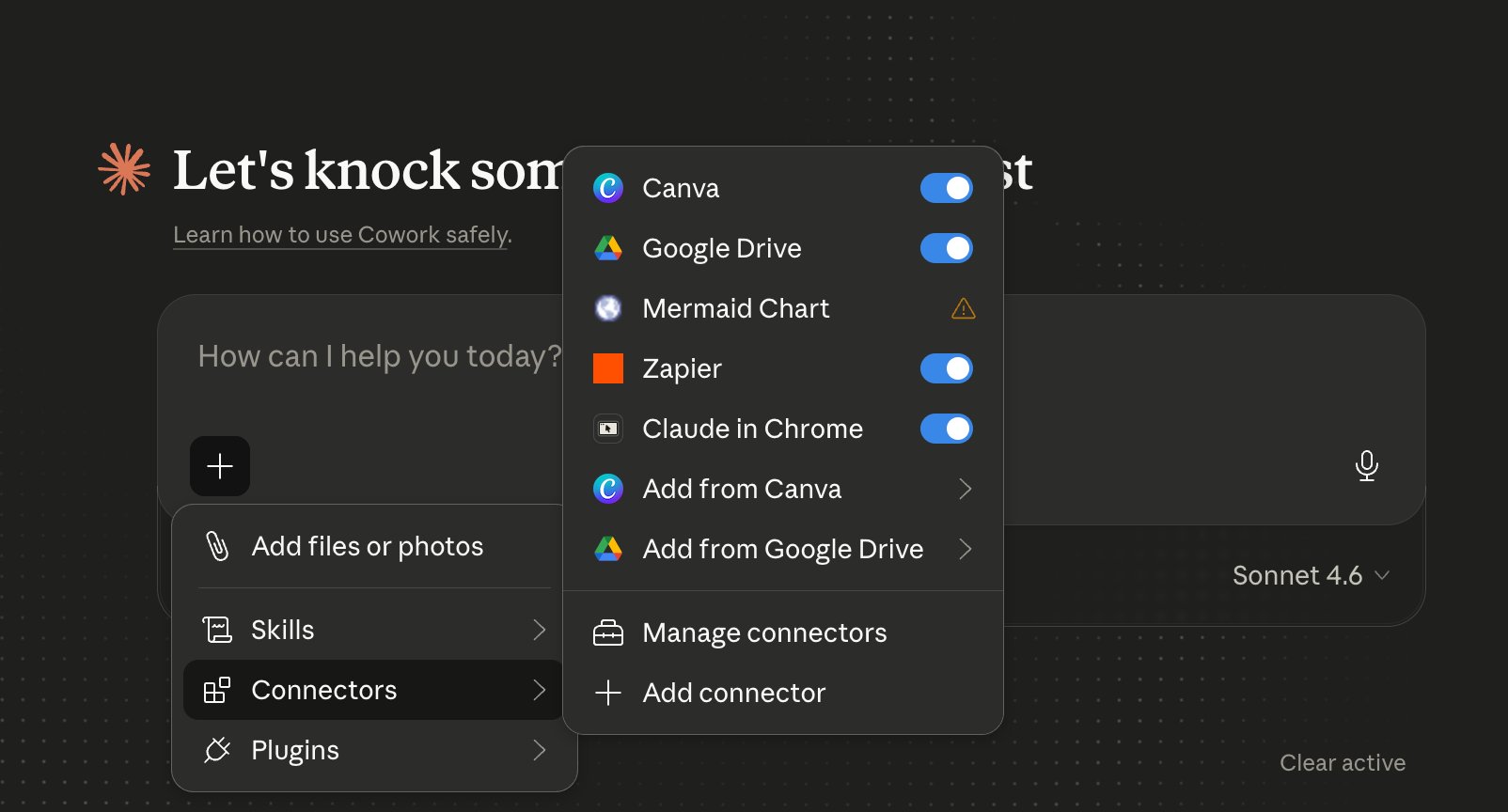
Connectors wire Claude into the tools already in use.
Slack, Google Drive, Calendar, GitHub, Notion, Jira.
Most people set these up during onboarding and then forget they exist.
The ones worth using daily:
1Slack: "Summarize everything tagged to me in the dev channel since Monday" takes four seconds and replaces ten minutes of scrolling23Google Drive: "Find the requirements doc Sarah shared last week" works without knowing the exact filename. Claude searches by content not title45Calendar: "What does Tuesday look like and what needs prep for the 2pm?" Claude reads the event, finds the attached brief and writes a three-sentence summary67GitHub: "List the open PRs waiting on review with one-line summaries" faster than opening GitHub when five tabs are already going
The pattern that makes connectors worth the setup: ask Claude to work across sources at once.
What are the blocked tasks and is there a related Slack thread worth reading?
No single tool can answer that.
Claude does it in about four seconds....
6. Computer Use
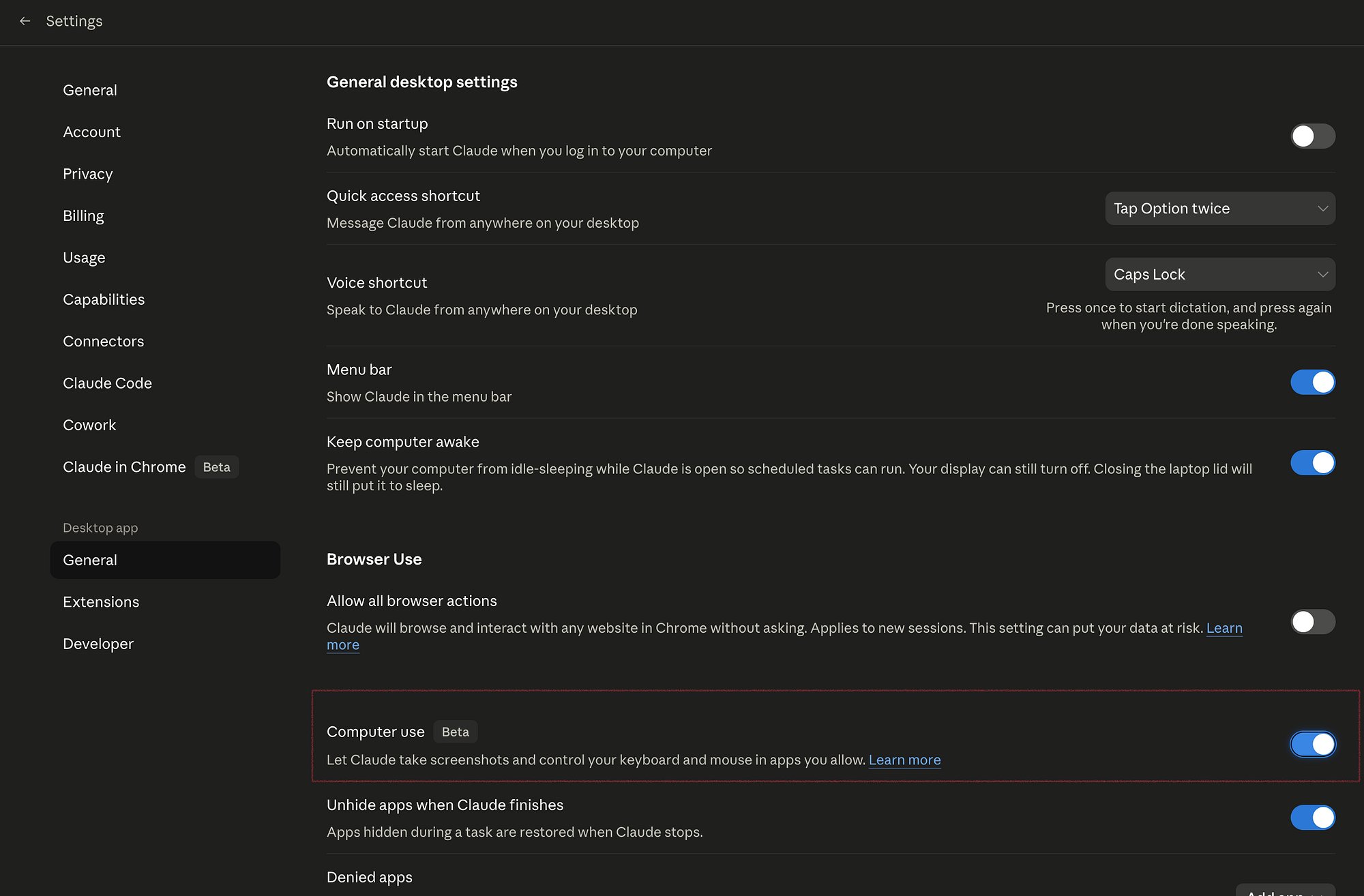
Computer Use is the feature most people write off after one demo.
That's a mistake.
Claude can see the screen, move the cursor, fill forms and extract data from pages - all in a sandboxed environment separate from the actual system.
it's not a gimmick.
it's a task runner for repetitive structured work.
3 places where it's faster than doing it manually:
1Repetitive form submission — expense reports, vendor registrations, recurring submissions. Claude handles it in the background23Multi-tab research — "Go to each of these seven pricing pages and give me a comparison table." Claude opens each tab, reads the relevant section, closes it and moves to the next. A competitor pricing analysis that takes 38 minutes manually takes 5 minutes with Computer Use45Data extraction from sites without APIs — job boards, directories, government databases. Any site with structured content but no export option
Computer Use isn't for everyday browsing. it's slower than doing simple things manually. But for tasks requiring repetitive structured actions across many pages it changes the math entirely.
7. Cowork Mode
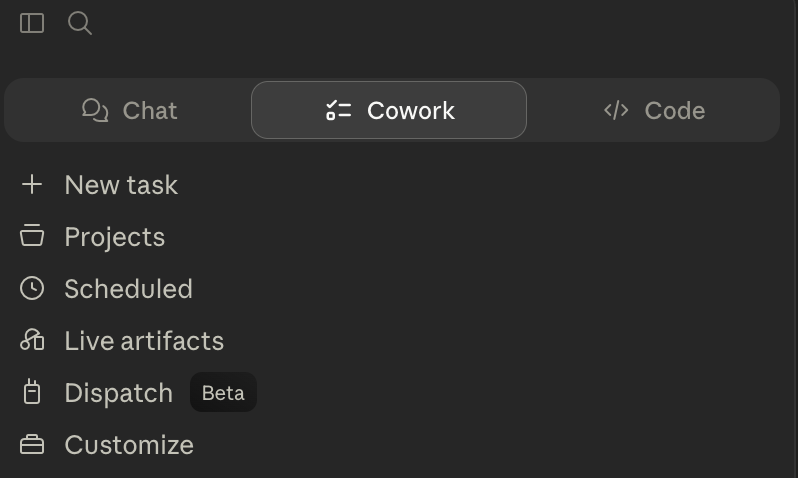
Cowork is Claude's desktop app & it operates differently from the browser version.
it has a workspace folder on the actual machine.
Files Claude creates land there and persist between sessions.
Files dropped in are readable by Claude without any upload step.
The workflow that changes most: keep a folder as the Cowork workspace. When Claude produces something needed again - a draft, a reference doc, a script (ask it to save there).
Open Cowork the next morning & the files are present and readable directly.
That's meaningfully different from the browser version where every file upload is a fresh action and nothing persists automatically.
Cowork also runs skills and plugins.
Custom workflows fire based on what's happening without having to decide which one to call.
8. Voice Mode

This is the most underrated workflow in the whole stack.
Voice Mode on mobile lets you think out loud to Claude.
Not dictate - think.
Talk through a problem, Claude listens and when done it responds with structured output: decisions, next steps, open questions.
Use it during a commute.
20 minutes of working through a problem that keeps getting deferred.
By the time arriving you have a three paragraph brief instead of a vague concern that keeps getting pushed.
The other mobile use case is capture. Notice something (a bug, a task, an idea) and say "add this to sprint notes and flag it for tomorrow morning." It lands in the Project and shows up in the next session.
Voice Mode is on desktop too.
For unblocking something stuck talking through it out loud still works better than staring at a blank prompt field.
9. User Instructions
This is the feature with the highest return per minute of setup time.
User Instructions is a persistent system prompt that runs across the entire account (every new chat, every project, every session)
Find it in Settings → Account → User Instructions.
Without it every Claude chat starts from a blank slate.
Claude writes for the average user. With User Instructions set up Claude writes for the right person from the first sentence in every single session.
Here's what a solid setup looks like:
1No bullet points unless asked2Short paragraphs, three sentences max3Active voice, no hedging4Skip intro paragraphs that restate the question5No "Great question!" or "Certainly!" preambles6When sharing code assume the language is understood
If there are 30 minutes this week spend them here.
it's invisible when it works.
The "be concise" and "skip the intro" lines stop appearing in every prompt.
What this looks like stacked together
A four-hour article now takes 90 minutes.
The writing still happens. The difference is the setup around it.
Projects, Artifacts, Custom Styles, Connectors, User Instructions (stack all five and the time savings compound across every session)
Take any one out and the workflow slows down noticeably.
The model didn't change. The setup did.
And if you use Claude Code to build products...
ClaudeKit takes this same idea further.
Pre-built slash commands, skills and subagents for engineering, marketing, SEO, video and ecom.
The setup layer for builders!!
hope this is smh useful for you :)
— Madni