I've recently had a strong realization while building Agent workflows: Agents like Openclaw, Hermes, Claude code, and Codex don't necessarily need larger context windows; they need better memory capabilities. I spent 30 minutes connecting persistent memory to my commonly used coding Agents—no Docker, no vector database cluster, and this time, its 'brain' is just a bunch of Markdown files that I can open and edit directly.
I. Your Agent Wakes Up with Amnesia Every Day
Anyone who has built an Agent has likely felt this frustration: yesterday it just helped you locate a grueling bug, but today, in a new session, it knows nothing about what happened yesterday.
Your decisions, workflows, and the pitfalls you finally figured out—none of it stays with the Agent. The context is locked in the previous conversation; once closed, it evaporates.
Our first reaction is usually to stuff the prompt even fuller. We pour history, user preferences, and project background into the context window and pray the model doesn't forget.
But this path quickly hits a wall. Windows have limits, tokens cost money, and most importantly—that 'memory' you stuffed in is one-time-use; it's gone once the window is closed.
Ultimately, what you lack isn't a larger prompt, but a layer of persistent memory.
In this article, I'll take you through about half an hour to connect an Agent to EverOS, an open-source, local-first memory operating system.
No need to set up MongoDB, Elasticsearch, or a whole vector database cluster.
The best part is that it stores memory as Markdown files that you can directly open, read, and even manually edit. By following this guide, your Agent will have long-term memory across sessions, and this memory is transparent and yours.
Without further ado, let's get started.
II. Why EverOS Instead of Building Another Vector Database?
Before we start, let's spend a minute explaining how it differs from 'writing another vector database,' because this determines if these 30 minutes are worth it.
Most memory solutions are a black box: you feed in text, it spits out a string of vectors to store in a database, and returns a bunch of similarity scores during retrieval.
The problem is: when something goes wrong, you have no idea what it actually 'remembered' or why it remembered it that way. Debugging is basically guesswork 😂
EverOS takes a different path.
Its storage is a local trio: Markdown as the single source of truth, SQLite for state and processing queues, and LanceDB for vectors, BM25 full-text indexing, and scalar filtering.
Component | Task |
|---|---|
Markdown | Single source of truth; all memories are saved as readable, grep-able, Git-versionable files that can be opened in Obsidian (.md) |
SQLite | Manages state and processing queues |
LanceDB | Manages vectors, BM25 full-text indexing, and scalar filtering |
The key is the first component. Want to know what the Agent remembered? Just cat it. Want to delete a wrong memory? Open it in an editor and delete it. This level of inspectability is something black-box vector databases can never provide.
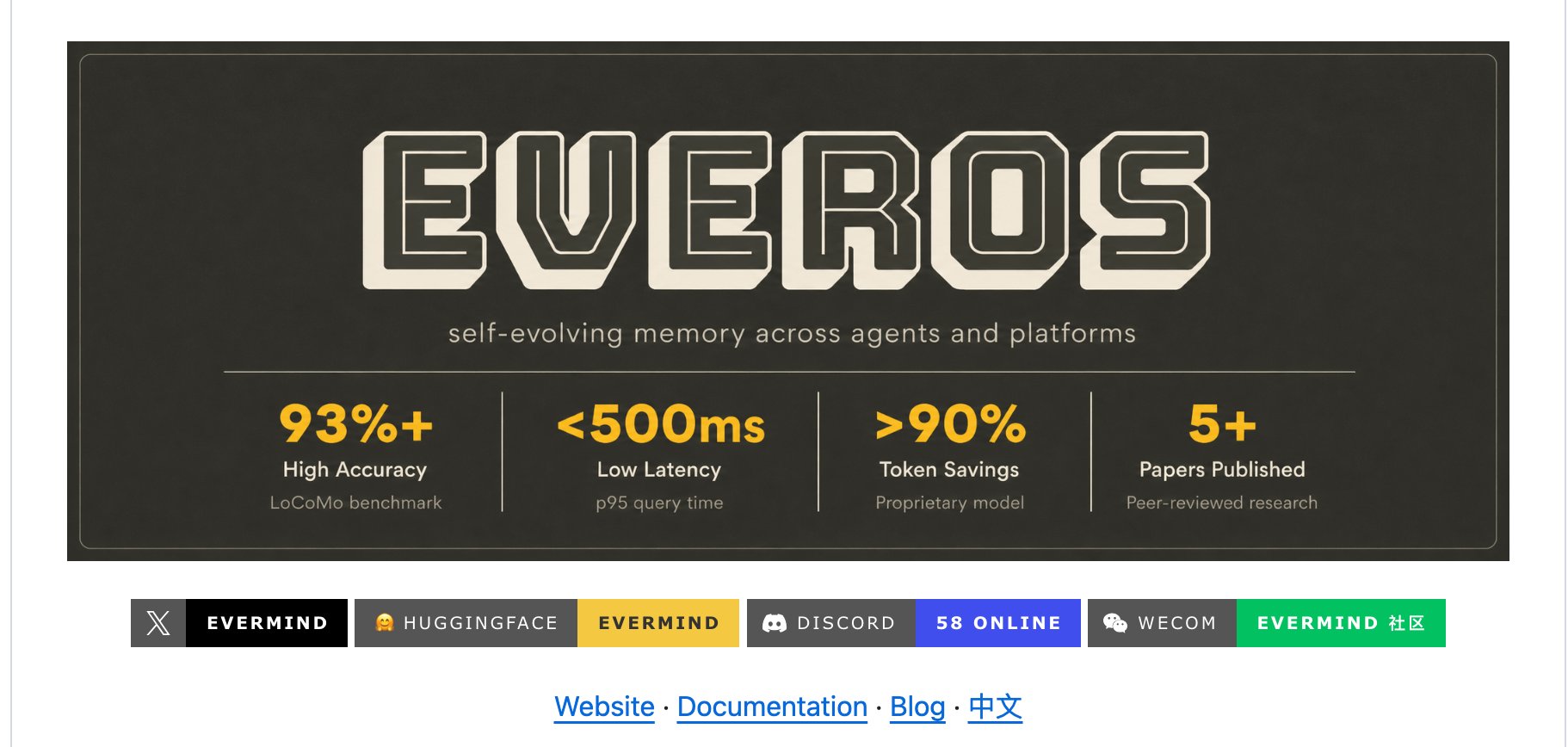
As a side note, the official benchmarks aren't bad either: LoCoMo 93.05%, LongMemEval(-S) 83.00%, HaluMem about 90%+. These are official figures, so take them as you will, but what really convinced me wasn't just the scores.
Simply put, our Agent's brain is just a bunch of files we can open.
Alright, philosophy aside, let's get hands-on.
Step 1: Environment Preparation (Approx. 5 Minutes)
You'll need three things.
Python 3.10 or higher (3.12+ recommended), and a high-performance package manager called uv. EverOS uses it to manage dependencies and virtual environments.
You also need two API keys—by default, one for OpenRouter to manage LLM and multimodal tasks, and one for DeepInfra to manage embedding and reranking.
If you don't have uv installed, one line handles it:
1# macOS / Linux2curl -LsSf https://astral.sh/uv/install.sh | sh
Regarding keys: EverOS is compatible with all endpoints that follow the OpenAI protocol.
So if you already have OpenAI, a self-hosted vLLM, or local Ollama, you can completely replace the default providers. I'll explain how to change the configuration in the next step.
Step 2: Installation and Initialization (Approx. 5 Minutes)
There are two ways to install, choose based on your goal:
If you want to read the code or make modifications, install from source:
1git clone https://github.com/EverMind-AI/EverOS.git2cd EverOS34uv sync # Creates ./.venv and installs dependencies5source .venv/bin/activate # Or prefix every command with `uv run`
If you just want to integrate it into your project, install the package directly:
1uv pip install everos # Or pip install everos
After installation, use the same command to initialize:
1everos init
It will generate a starting .env. Open it and fill in your two keys:
1# Default providers:2# OpenRouter → LLM / Multimodal3# DeepInfra → Embedding / Rerank4#5# To use other OpenAI-compatible services (OpenAI / vLLM / Ollama, etc.),6# point the corresponding *__BASE_URL fields to them.
A quick tip: don't slip up. The .env contains your keys, so remember to add it to your .gitignore first.
Committing keys to a repository is a mistake you'll regret for a long time.
After filling it out, run these two commands to confirm everything is fine:
1everos --help # If you see the command list, the CLI is installed2make test # Can be run if installed from source
Step 3: Start Service and Verify (Approx. 3 Minutes)
Start the service:
1everos server start
Keep it running in this terminal. Open a new terminal and do a health check:
1curl http://127.0.0.1:8000/health
If everything is normal, you'll see:
1{"status":"ok"}
Seeing this ok means your local memory service is alive.
Small reminder: the documentation says the default port is 8000, but confirm it with your own eyes once it's up. Next is the core of this article.
Step 4: The First Memory—Write It, Then Search It (Approx. 8 Minutes) ⭐
The most valuable thing about EverOS is what I call the core loop: write a fact → save it as persistent Markdown → search it back through the local index. Let's run through it.
First, write a fact about a user. Note the user_id; it determines who this memory belongs to—this is key to how EverOS prevents 'cross-contamination' in multi-user or multi-Agent scenarios.
To be honest, for the exact calling method of the 1.0.0 local version (whether it's a CLI subcommand or a REST request body), please refer to QUICKSTART.md in the root directory. The README itself points there for authoritative examples. I won't copy old interface fields to avoid leading you astray. The following is illustrative; please replace it with the actual command for your local setup:
1# Illustrative, refer to QUICKSTART.md for exact syntax2everos memory add --user-id alice "Alice prefers using TypeScript and hates the 'any' type"
After this, EverOS does three things in the background: extracts the sentence into a structured memory, saves it as Markdown, and syncs it into the local SQLite and LanceDB indexes.
Now switch sessions, pretend it's 'the next day,' and search for it in plain English:
1# Also refer to QUICKSTART.md2everos memory search --user-id alice "What are Alice's coding preferences?"
Once it runs, paste the actual result you get back here—it should hit the preference you just added, along with a relevance score.
Behind this is a hybrid search system: BM25 catches keywords, vector ANN catches semantics, and scalar filtering precisely slices by dimensions like user_id, all powered by LanceDB. So even if you change your phrasing, it can still find it.
At this point, your Agent has cross-session memory. But the part of EverOS that really excites me is the next step.
Step 5: Open the Black Box and See What Memory Looks Like (Approx. 5 Minutes) ⭐
Remember the 'brain is just a bunch of files' line from the beginning? Let's go dig those files out.
Open ~/.everos:
1~/.everos/2└── default_app/ # app_id3 └── default_project/ # project_id4 ├── users/alice/5 │ ├── user.md # Alice's profile (visible)6 │ ├── episodes/ # Situational logs by day (visible)7 │ ├── .atomic_facts/ # Atomic facts (dot file, hidden by default)8 │ └── .foresights/ # Predictive memory (dot file, hidden by default)9 └── agents/<agent_id>/10 ├── agent.md11 └── .cases/ # Agent's case library
cat the users/alice/user.md file. You'll find that the preference you just added has been structurally written into Alice's profile, readable by humans and directly editable by you.
Yes, literally—your Agent's memory is a notebook you can open anytime.
This is the true meaning of 'Markdown as the single source of truth.'
Even cooler, you can open the entire ~/.everos directory with Obsidian and browse the Agent's memory as a visual knowledge base.
I strongly suggest taking a screenshot of this; it explains what 'transparent memory' is better than any copy could.
You probably also noticed two paths in the directory: users/ and agents/.
This is EverOS's dual-track memory: the user track records situations and profiles (who the user is, what they prefer), and the Agent track records cases and skills (what the Agent has done, what it has learned). The two tracks are extracted separately to avoid contamination.
One Step Further: What Else Can It Do?
In these 30 minutes, we've only run through the core loop, but EverOS can do much more. Here are a few directions for you to explore next.
Multimodal ingestion—with one API call, you can ingest PDFs, images, documents, tables, and web URLs into memory.
A quick warning: Office document parsing depends on LibreOffice being installed on the system. If it's not, .docx/.pptx/.xlsx will fail, but PDFs, images, and audio are unaffected.
Self-evolution—every completed task is recorded as a Case. Patterns that repeatedly succeed will self-evolve into reusable Skills shared across the Agent team, without you needing to organize them manually.
The roadmap also includes Knowledge Wiki (organizing fragmented memories into versionable wiki pages) and Reflection (connecting weak signals, compressing history, and improving profiles during system idle time).
I'm excited about these directions, but they are still in progress, so consider this a preview.
Common Pitfalls
One major pitfall must be highlighted.
Many 'EverOS tutorials' online actually refer to its early heavy version, which required docker-compose up to pull in a whole suite of MongoDB, Elasticsearch, and Redis.
If you follow those, you'll fail from step one. The entire value of this 1.0.0 lightweight version is precisely that it doesn't need those—just stick to the everos init / everos server start CLI commands.
The other two are quick: remember to install LibreOffice for Office document parsing, and always put .env in .gitignore.
Wrapping Up: Memory is Worth Taking Seriously
Half an hour ago, your Agent started from scratch every time you opened a session.
Now, it has a layer of cross-session persistent memory—and this memory isn't a string of incomprehensible vectors in a black box; it's a file you can open, read, edit, and version-control with Git.
This is exactly why I think it's worth bookmarking. It doesn't turn 'memory' into a mysterious concept; it gives developers a concrete set of tools that can be run, seen, and modified.
If you have an Agent, LLM application, or programming assistant that needs long-term memory, bookmark this repository now. You'll think of it the next time you start a new project:
👉 https://github.com/EverMind-AI/EverOS
This article is based on EverOS 1.0.0 lightweight local version. Benchmarks are from official sources. The repository updates quickly; please check the latest version number, default port, and authoritative examples in QUICKSTART.md before publishing, and replace the text with your actual local commands and returns.