Proposals, internal documents, seminar materials. Are you wasting hours every time you create slides?
Thinking about the structure, typing the text, adjusting the layout, and worrying about the color scheme.
Even though it's not your main job, this is where you spend the most time.
I think many people feel this way.
However, in 2026, that common sense has completely changed.
If you ask AI, you can create a draft from structure to design in just a few minutes.
If used correctly, a half-day's work of document preparation can be finished in 30 minutes.
The problem is that "there are too many tools, and I don't know which one to use."
Gamma, Irushiru, Felo, Claude, Gemini, Copilot...
Honestly, it's confusing, isn't it?
Moreover, each has different strengths, so if you choose the wrong one, you'll end up with a result that's "different from what you expected," wasting time.
Therefore, in this article, I have summarized everything from how to use major AI slide tools, specific prompt examples to improve accuracy, tips for finishing to remove the "AI-like" feel, to websites for design reference. This is the "definitive version" where you can understand the overall picture and practice of AI slide creation in one go.
It's quite long.
But if you master what's written here, you will no longer be exhausted by slide creation.
Bookmarking is recommended.
Let's get started.
Chapter 1: The Mindset for Not Failing with AI Slides
Before getting into tools, please grasp this point.
If you use them without knowing this, you will almost certainly feel that "it's not working."
AI is a tool for creating a "draft," not a "finished product"
Current AI is still not good at producing a "perfect finished product" in one go.
However, it is exceptionally good at creating an "80% draft" in a few minutes.
Correctly understanding this nature is the starting point for everything.
If you expect that "leaving it all to AI will result in perfect documents," you will be disappointed.
If you think, "Let AI do 80% and I'll finish the remaining 20% myself," it becomes the ultimate time-saver.
Deconstruct slide creation into "processes"
Why is a "draft" effective? If you divide slide creation into processes, it looks like this:
- Thinking about the structure (what to say and in what order)
- Creating text for each page
- Adjusting the design (layout, color scheme, diagrams)
- Fact-checking and final adjustments
Among these, the parts that take the most time and are prone to getting stuck are "1. Structure" and "2. Text."
This is where many people stop.
AI dramatically speeds up exactly this first half.
Conversely, "4. Fact-checking" and fine-tuning the design are areas humans should handle.
AI for the first half, humans for the second half.
This division of labor is the unwavering principle for mastering AI slides.
With this premise in mind, let's look at the tools.
Chapter 2: Understanding AI Slide Tools in "3 Types"
There are many tools, but you can organize them instantly by dividing them into three major types.
- Type 1: Web-based/Automatic Generation (Focus on ease)
- Type 2: PowerPoint/Google Integration (Focus on practical work/delivery)
- Type 3: Claude-based (Focus on flexibility/customization)
The type you should look at depends on "what you prioritize."
Let's dive deeper into each.
Chapter 3: Type 1—Web-based/Automatic Generation
This type creates everything from structure to design all at once just by entering a theme in your browser. For those who "just want to get it into shape quickly." Let's look at four representative ones.
Gamma

Used by over 50 million people worldwide, this is the leader in this genre. Just by entering a one-line prompt, a slide deck is completed in 1-2 minutes. Above all, the design is sophisticated. With a unique editing method called "card format," you can intuitively create visually appealing documents. The latest version features "Gamma Agent," allowing you to edit later using natural language, such as "Add a graph to the 3rd slide" or "Make the overall tone brighter."
Price Guide: Free plan available (initial 400 credits = approx. 10 generations). For serious use, plans around $8/month are considered good value.
Suitable for: People who prioritize visual quality. People creating English pitch decks.
Caution: For "stiff B2B documents" in Japanese, the decoration might feel excessive. It's stronger for external, visual-heavy documents than for rigid internal ones.
Irushiru

This is a domestic tool born in Japan. Its greatest strength is undoubtedly the "naturalness of the Japanese language." The balance of business honorifics, conjunctions, and paragraph structure is in a different league from overseas tools. Many say that when comparing AI proposals made with Gamma and Irushiru, Irushiru's can be used with almost no manual correction. It has over 3,000 types of Japanese templates and properly supports Japanese business document formats like approval requests, proposals, and reports. It has a rich track record of adoption, including listed companies.
Price Guide: Free plan up to 3 documents (downloading is paid). Paid plans start from around 1,680 yen/month.
Suitable for: People who mass-produce proper documents for Japanese companies.
Caution: It's not as good at flashy designs or importing web information as overseas tools.
Felo

The biggest feature is its integration with AI search. You can create slides while incorporating the latest news and market trends in real-time. In other words, "researching" and "creating" are integrated. It shows its true strength in document creation that starts with information gathering, such as market research, competitor analysis, and summaries of the latest trends.
Suitable for: People who create documents with high timeliness or those requiring research.
Genspark

Genspark is a "versatile AI agent" that handles various tasks like searching, document creation, and dialogue, not just slide creation. In the slide function, if you give it a theme, it gathers information and creates information-rich documents interwoven with diagrams and graphs. Its strength is being able to complete "researching" and "creating" within one service.
Suitable for: People who want to finish both research and slides in one tool.
Caution: Because it's multi-functional, it takes a little time at first to grasp "what it can do." Also, the direction might differ from the "simplicity" preferred in Japanese business documents. If it feels too crowded, give instructions to reduce content.
Manus

The biggest feature of Manus is that it is equipped with a "virtual browser." The AI can perform the feat of browsing the web itself to research and even pasting screenshots to create documents. If you ask it to "create a research slide about the AI market in 2026," it searches, visits top sites, and automatically creates graphs and comparison tables. Its unique strength is that you can leave the entire research process to it.
Suitable for: People who want to quickly create information-heavy documents where research and analysis are the main focus.
Caution: Because it moves autonomously, generation can take time. Also, always fact-check the information that comes out yourself.
Chapter 4: Type 2—PowerPoint/Google Integration
For those who "ultimately want to deliver in their usual software," this is convenient. You can use AI within the environment you're used to.
Microsoft 365 Copilot
You can use AI directly within PowerPoint. If you provide a Word document, it can create the foundation of a slide deck based on it. If your company works in a Microsoft environment, the compatibility is excellent.
Suitable for: People whose main battlefield is PowerPoint and who have already implemented Microsoft 365.
Caution: A compatible plan is required, and the cost is somewhat high. The design quality of automatic generation feels a step behind dedicated tools like Gamma.
Gemini (Google)

Integrates with Google Docs and Google Slides. It's convenient for creating slides directly from meeting minutes or notes. For companies already using Google Workspace, the additional learning cost is low, making it the easiest option to try.
Suitable for: People whose company standard is Google Workspace.
Caution: The completeness of standalone automatic generation is not as high as dedicated tools. It's suitable for simple presentation materials that assume supplementary talk.
Chapter 5: Type 3—Creating with Claude (4 Methods)
Claude is characterized by having multiple ways to create slides and high flexibility. There are mainly four methods. Knowing these makes you really strong.
① Creating with Artifacts
You can create slides with high design flexibility using HTML or SVG on the spot. Since a real-time preview appears next to the chat, you can keep making corrections while talking. It's available even on the free plan, so it's perfect for trying out first.
② Creating PowerPoint files (.pptx) directly

If you turn on the "file creation function," you can generate a PowerPoint file that can be downloaded as is (paid plan). This is convenient for people who want to edit in PowerPoint later.
③ Claude in PowerPoint
Claude enters inside PowerPoint and can edit while maintaining existing templates and brand colors. The fact that it generates "editable PowerPoint objects" is subtly amazing. It meets the needs of the workplace where you don't want to break the company's format.
④ Claude Design

A feature that appeared in 2026, it can create structure, design, and even scripts for presentation (speaker notes) all at once.
"Best Practices for the Field" with Claude
Actually, there is a standard way of using it among people knowledgeable about AI slides. It is this:
Solidify the base of the structure and content with Claude, and add visuals with Gamma or Manus.
This is the idea of "Claude = Foundation, other tools = Toppings." Claude is strong at logical structure building and natural Japanese. By combining that with tools strong in design, you can reach high quality in the shortest time. Don't stick to one tool; combine them. This is the thinking of an advanced user.
Chapter 6: Practical "Prompts" to Dramatically Improve Accuracy
No matter which tool you use, if the instructions (prompts) are sloppy, the output will be sloppy. Here, I will introduce specific examples in a form you can copy and paste.
Ironclad Rule: Always convey 5 elements
Instructions that produce good slides include these 5 elements:
- Theme (What it's about)
- Target (Who to show it to)
- Structure (In what flow)
- Tone (Formal/Casual)
- Number of slides (How many pages)
15 Use-Case Specific Prompts You Can Use As-Is
From here, I will introduce 15 prompts you can actually copy and paste by use case. Just replace <Theme>, <Target>, and <Number of slides> with your own situation.
① Internal Proposals/Planning Documents
Logical and formal documents to move bosses and management.
Prompt 1: Proposal for introducing a new service
Please create an internal proposal document for introducing a new service. The target is management. The structure is "Current issues -> Solution -> Introduction effect (numerical) -> Cost -> Introduction schedule." The tone is formal. 10 slides in total. One message per page, and effects must be shown numerically.

*Creation image
Prompt 2: Improvement proposal for existing operations
Please create an improvement proposal document for existing operations. The target is the department head. Focus on the contrast between "Before (current problem) / After (after improvement)" in a structure that conveys the improvement impact at a glance. 8 slides in total. Focus on persuasiveness, using facts rather than emotions.
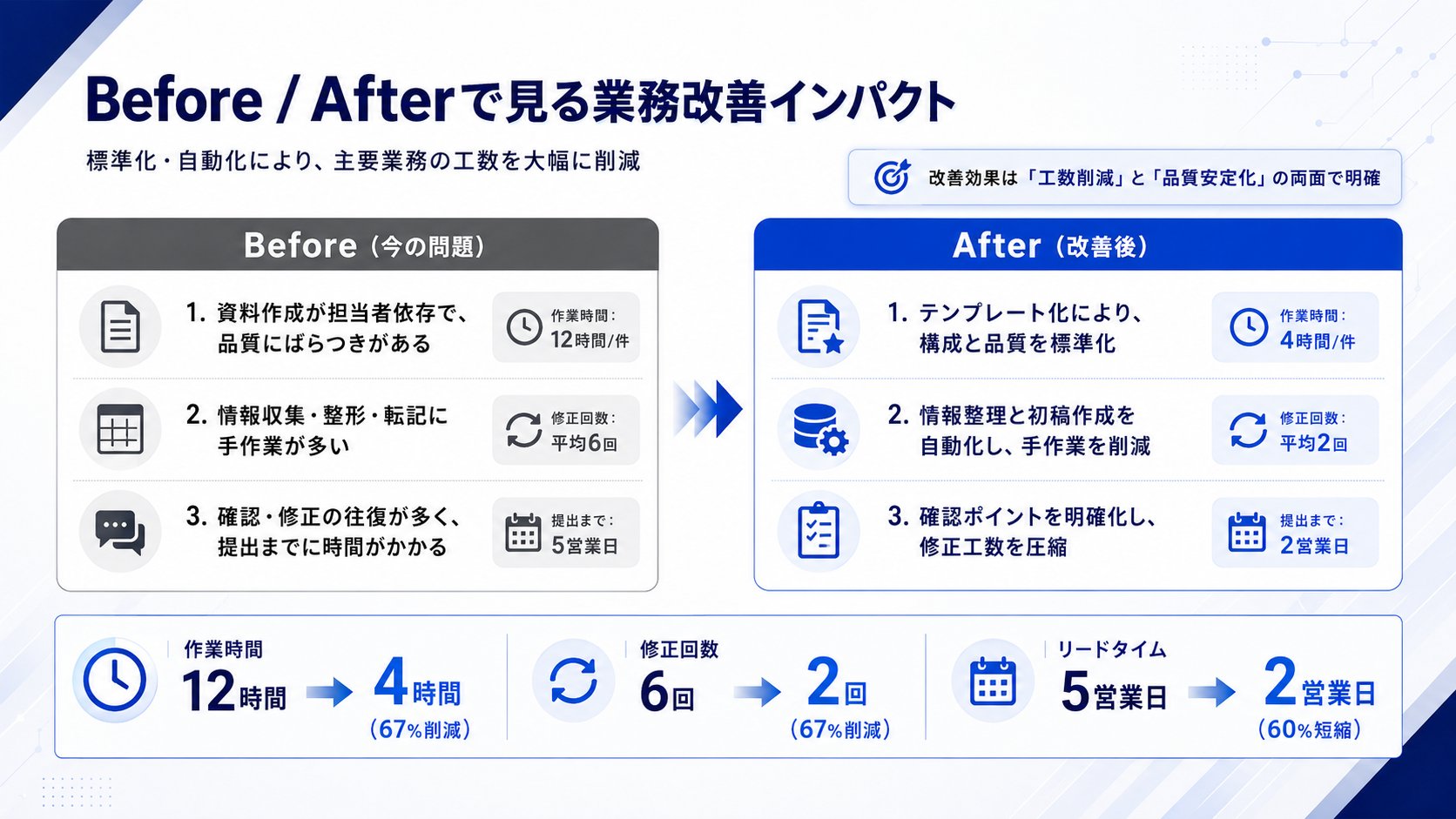
*Creation image
Prompt 3: Investment proposal for budget acquisition
Please create an investment proposal document for budget acquisition. The target is the decision-maker. The structure is "Market opportunity -> Company's challenges -> Investment plan -> ROI (Return on Investment) -> Risks and countermeasures." Formal tone, 12 slides in total. Clearly state the recovery period for ROI.
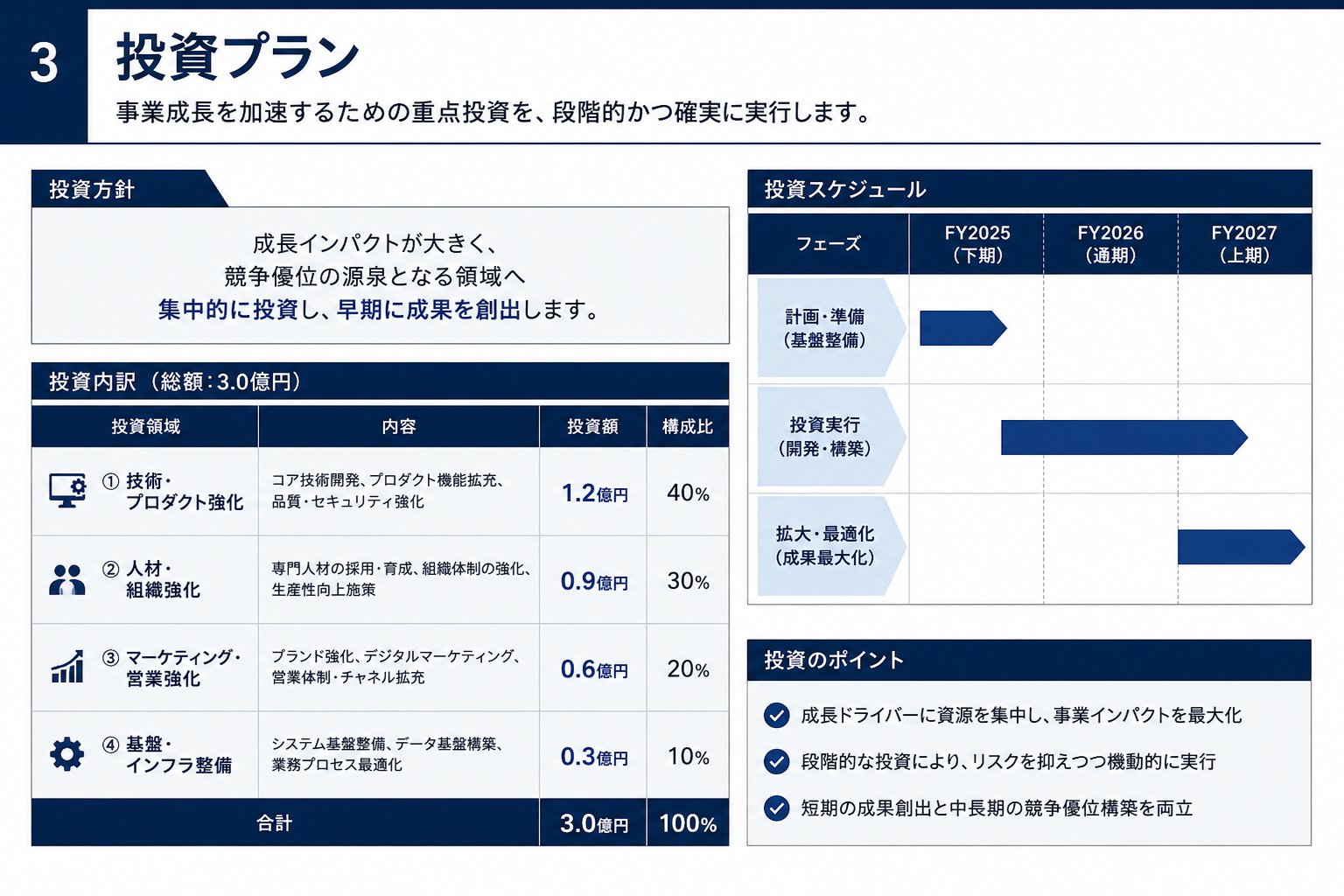
*Creation image
② Seminar/Presentation Materials
Friendly documents that don't bore the audience.
Prompt 4: Seminar for beginners
Please create materials for a beginner seminar "Introduction to AI Utilization." The target is working adults who have never touched AI. Avoid technical terms and use many analogies. One message per slide, with a bright and friendly tone. 15 slides in total.

*Creation image
Prompt 5: Workshop with exercises
Please create slides for a 90-minute workshop. The theme is "Improving Team Productivity." A structure that includes not just lectures but also two exercises (work) in the middle. Put "What you will gain from this part" at the beginning of each section. Friendly tone, 20 slides in total.
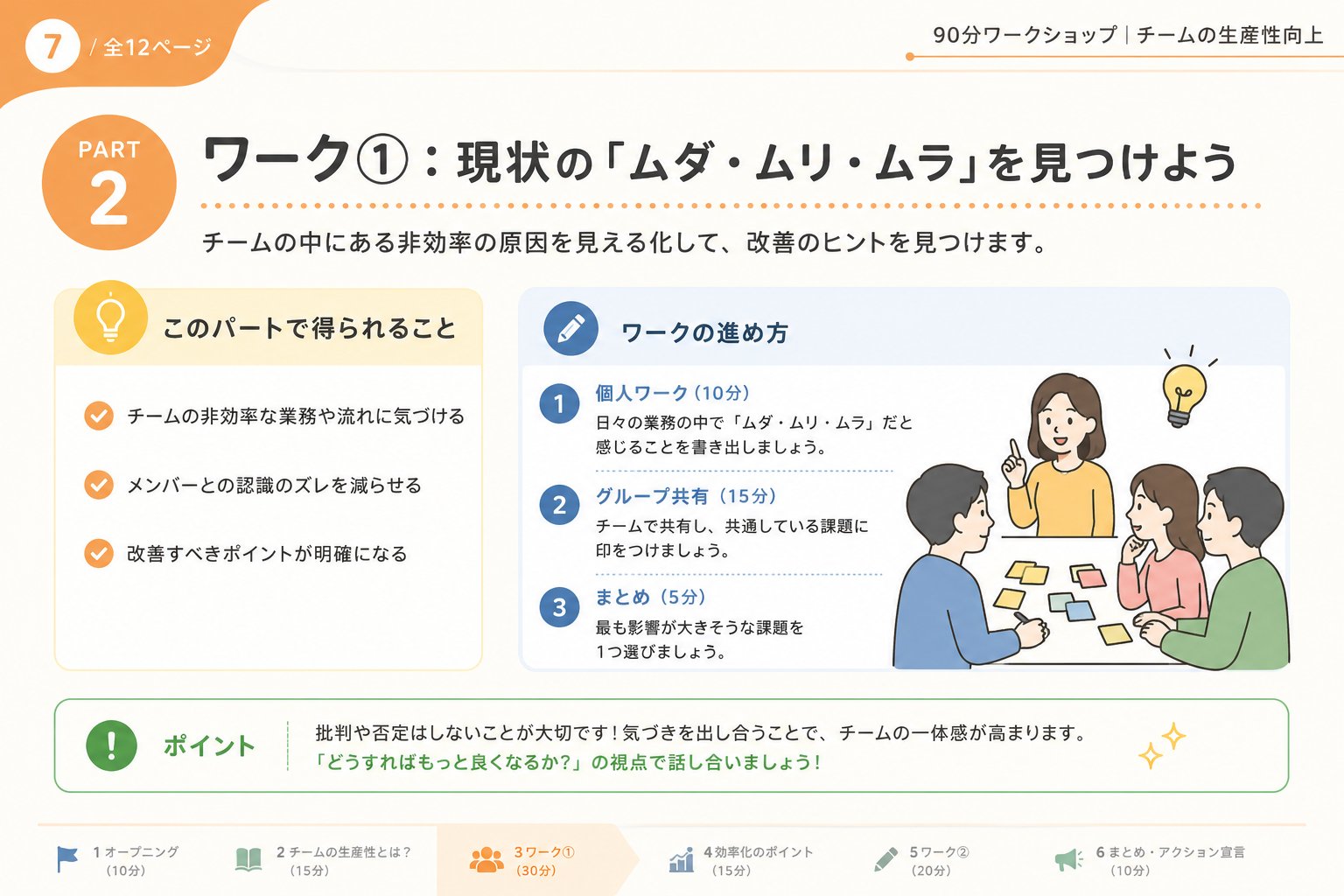
*Creation image
Prompt 6: 5-minute LT (Lightning Talk)
Please create LT materials for a 5-minute presentation in 7 slides. The theme is "How I succeeded in habit formation in 3 months." State the conclusion clearly at the beginning and use a story-like structure. Keep text to a minimum, focusing on keywords that leave an impression.

*Creation image
③ Sales/Business Meeting Materials
Sincere and easy-to-understand documents to gain customer trust.
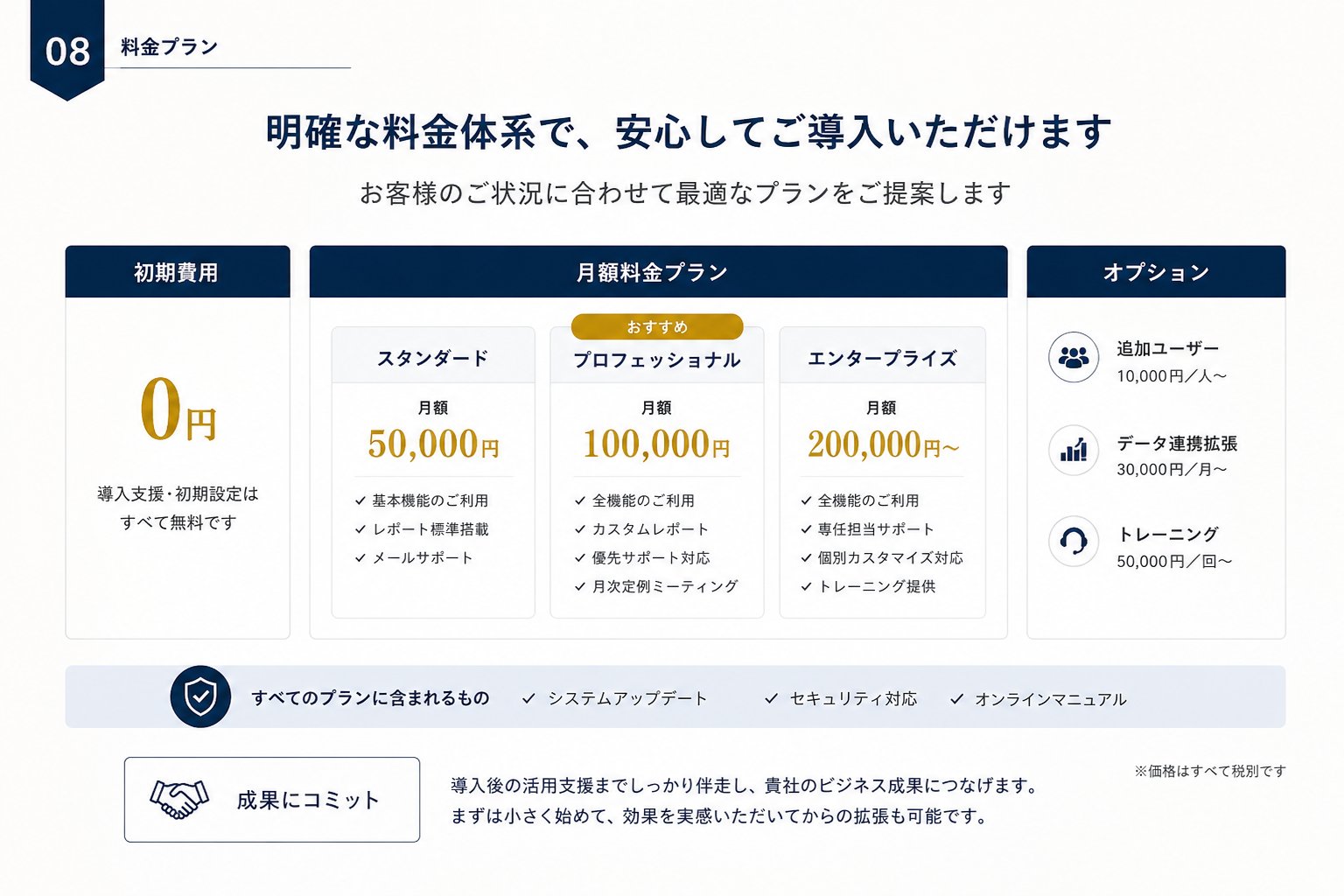
Prompt 7: Service introduction (for business meetings)
Please create service introduction materials for business meetings. The target is the person in charge at a prospective client. The structure is "Empathy for the other party's challenges -> Presentation of solutions -> Case studies -> Pricing -> Next steps." Sincere tone with a sense of trust, 10 slides in total. Include specific performance figures in case studies.
*Creation image
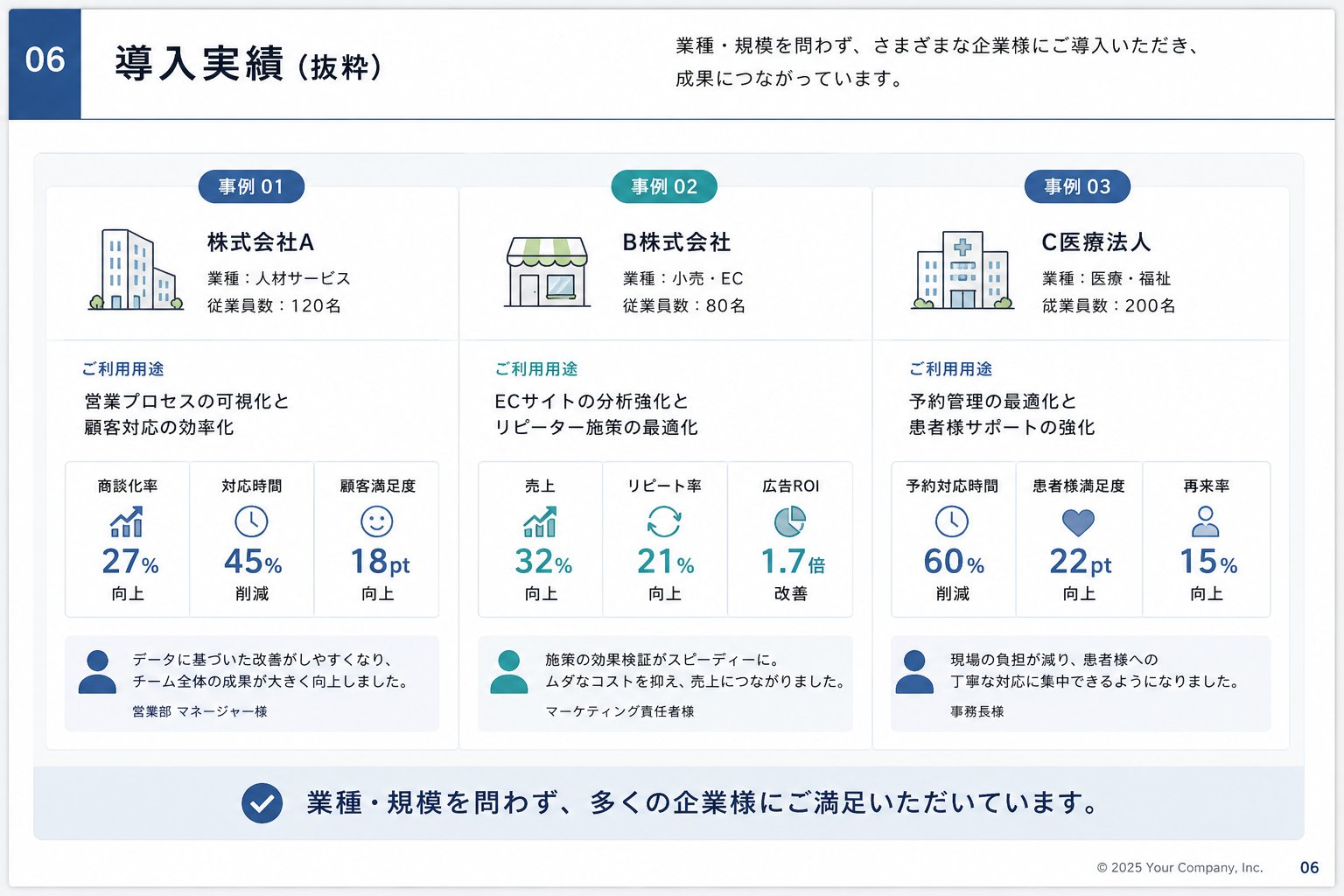
Prompt 8: Competitor comparison
Please create sales materials for competitor comparison. Focus on a table-format slide comparing three companies, including our own, across four axes: price, features, support, and track record. A structure that conveys our strengths naturally while appearing neutral. Sincere tone, 8 slides in total.
*Creation image
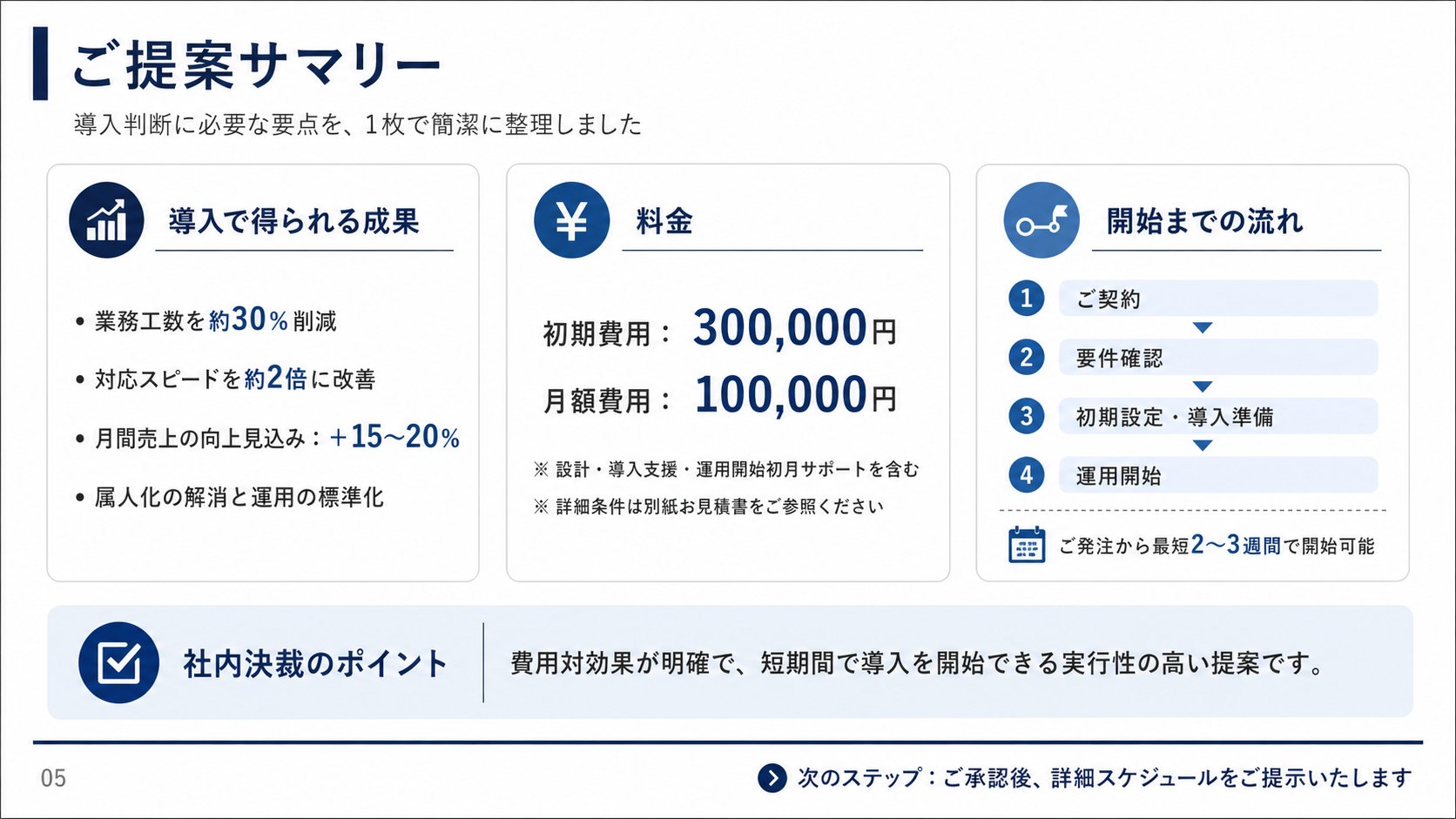
Prompt 9: Summary for closing
Please create a proposal summary document for closing in one slide. Condense the contents of previous meetings into a structure where "results gained from introduction, price, and flow until start" can be checked at a glance. Summarize sincerely and concisely so the other party can use it for internal approval.
*Creation image
④ Product/Service Introduction
Flashy and visual-heavy documents to convey charm in an instant.
Prompt 10: Introduction of a new product
Please create introduction slides for a new product. The target is general consumers. A flashy and visual-heavy design that conveys the product's charm at a glance. Structure: "Catchphrase -> 3 features -> Price -> Purchase path." Exciting tone, 7 slides in total.

*Creation image
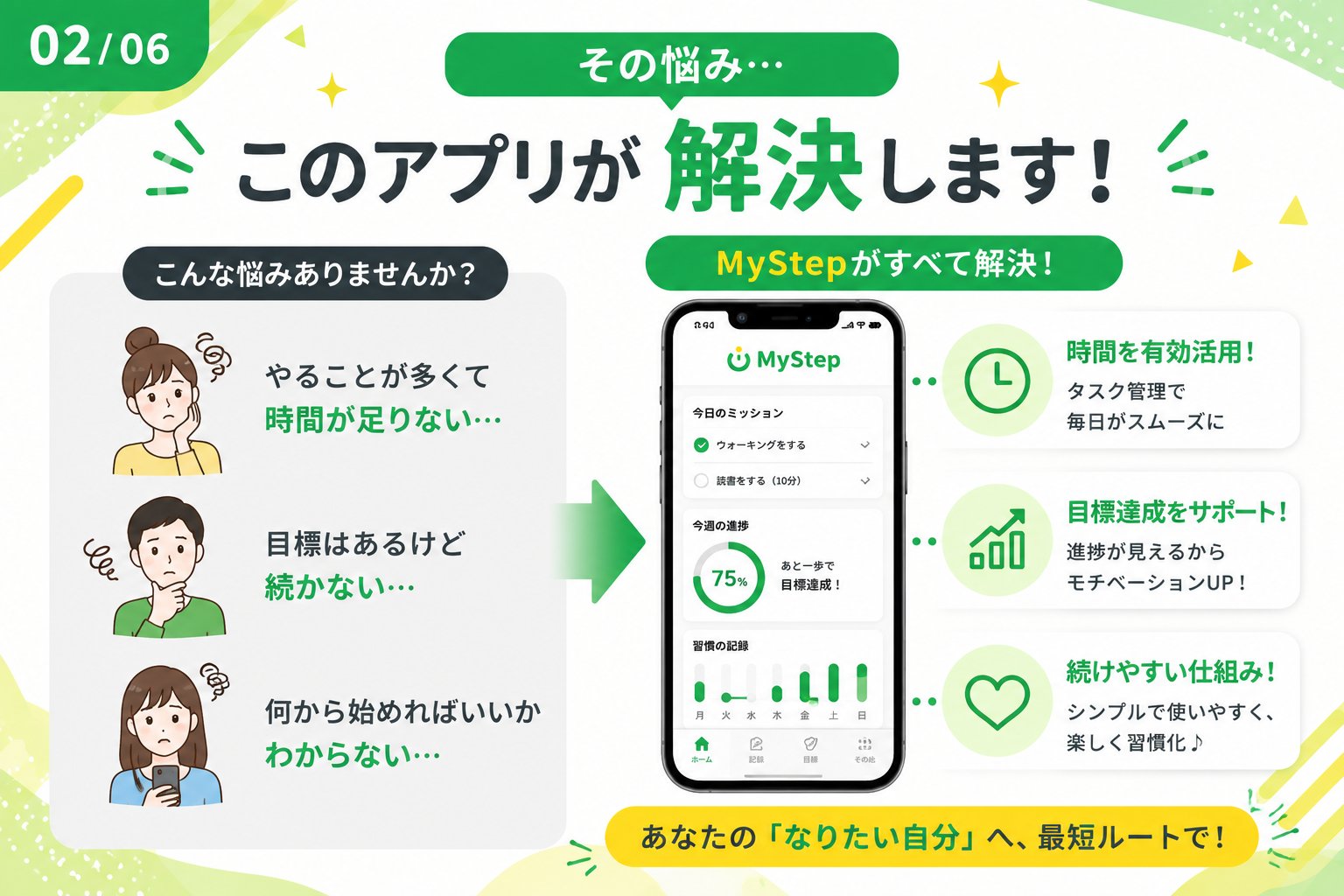
Prompt 11: App introduction
Please create introduction slides for an app. Target is people in their 20s and 30s. Structure: "Do you have these problems? -> Solve with the app -> Main features -> Start for free." Bright and pop design, 6 slides in total, keeping in mind that it will be viewed on a smartphone.
*Creation image
Prompt 12: Introduction of pricing plans
Please create a pricing plan introduction slide for a service in one slide. Compare three plans (Free, Standard, Pro) side-by-side, with a design where the recommended plan stands out. Add "Who it's suitable for" for each plan. Focus on readability rather than being too flashy.
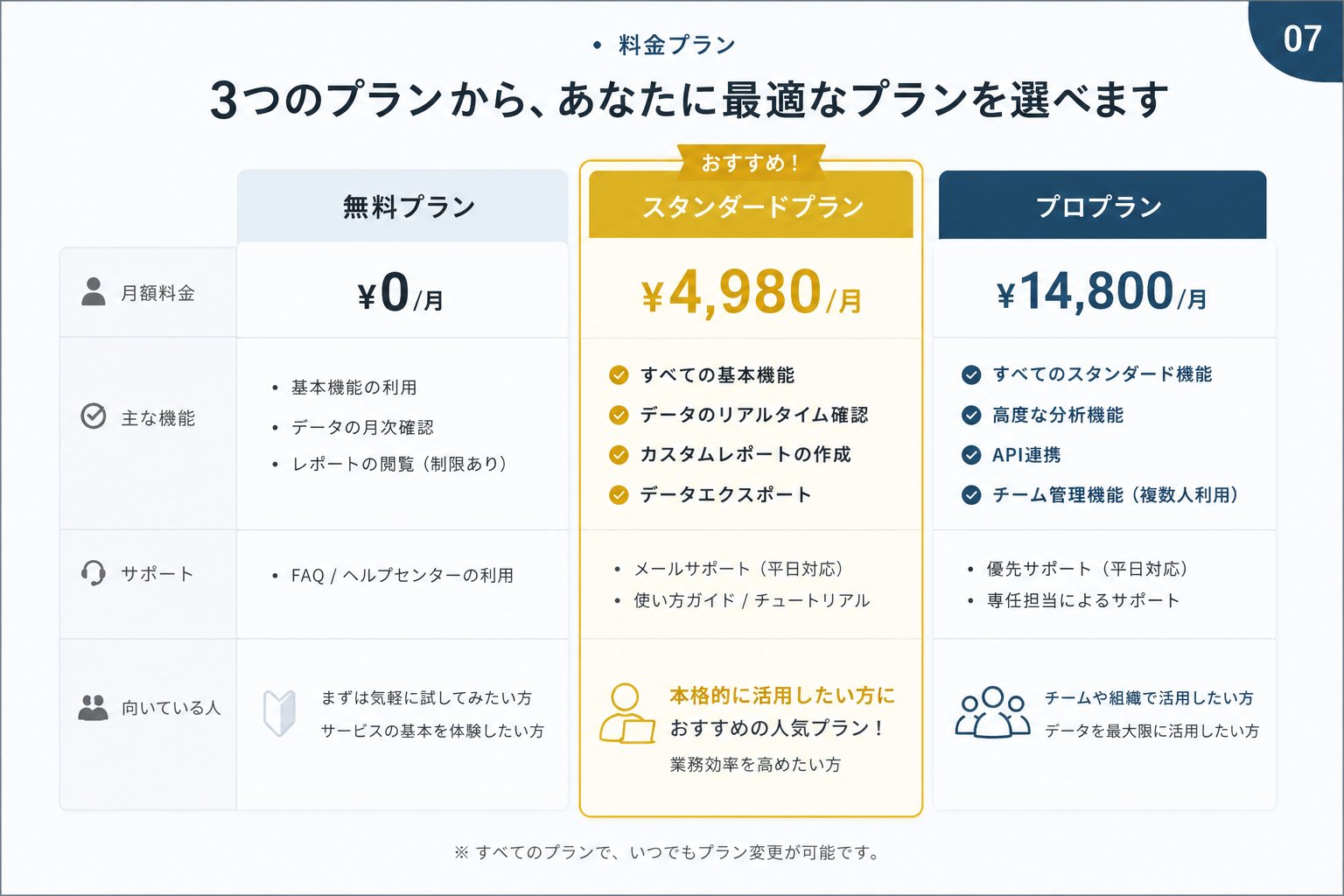
*Creation image
⑤ Internal Training/Study Sessions
Structured documents to organize and convey knowledge.
Prompt 13: New employee training
Please create training materials for new employees. The theme is "Basics of Business Email." Target is first-year employees. Structure: "Why it's important -> Basic format -> Common bad examples -> Exercises." Organized design where procedures are clearly understood, 12 slides in total.
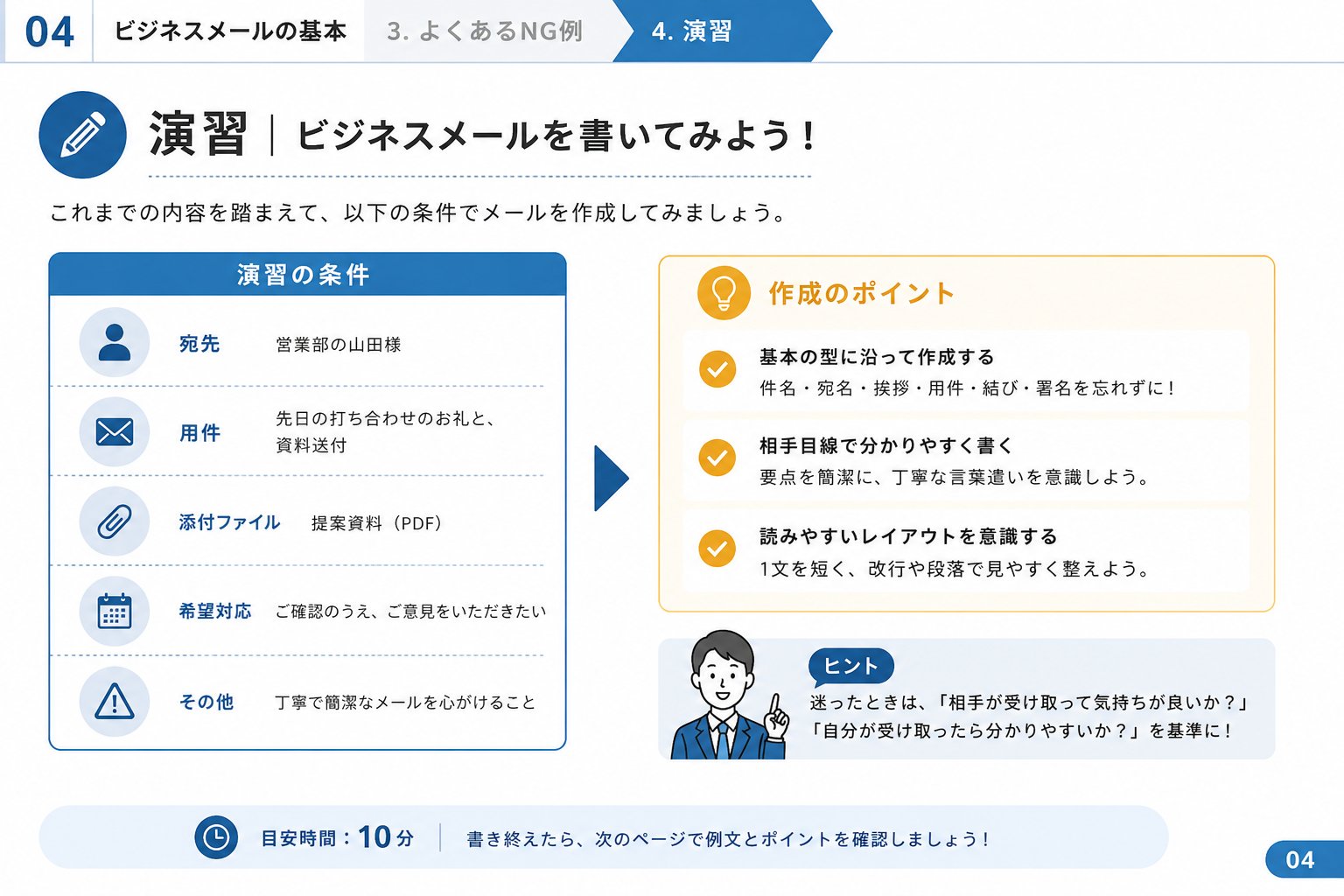
*Creation image
Prompt 14: Internal study session
Please create materials for an internal study session. The theme is "Our Company's Security Rules." Target is all employees. A structure that doesn't become too technical and shows "what not to do" vs. "correct response" in contrast. Organized and easy-to-read design, 10 slides in total.

*Creation image
Prompt 15: Operational manual
Please create an explanation slide for an operational manual. The theme is "Flow of Inquiry Handling." Target is the new person in charge. Summarize the flow from reception to resolution in one slide with a flowchart. Add points for judgment at each step so they can move without hesitation.
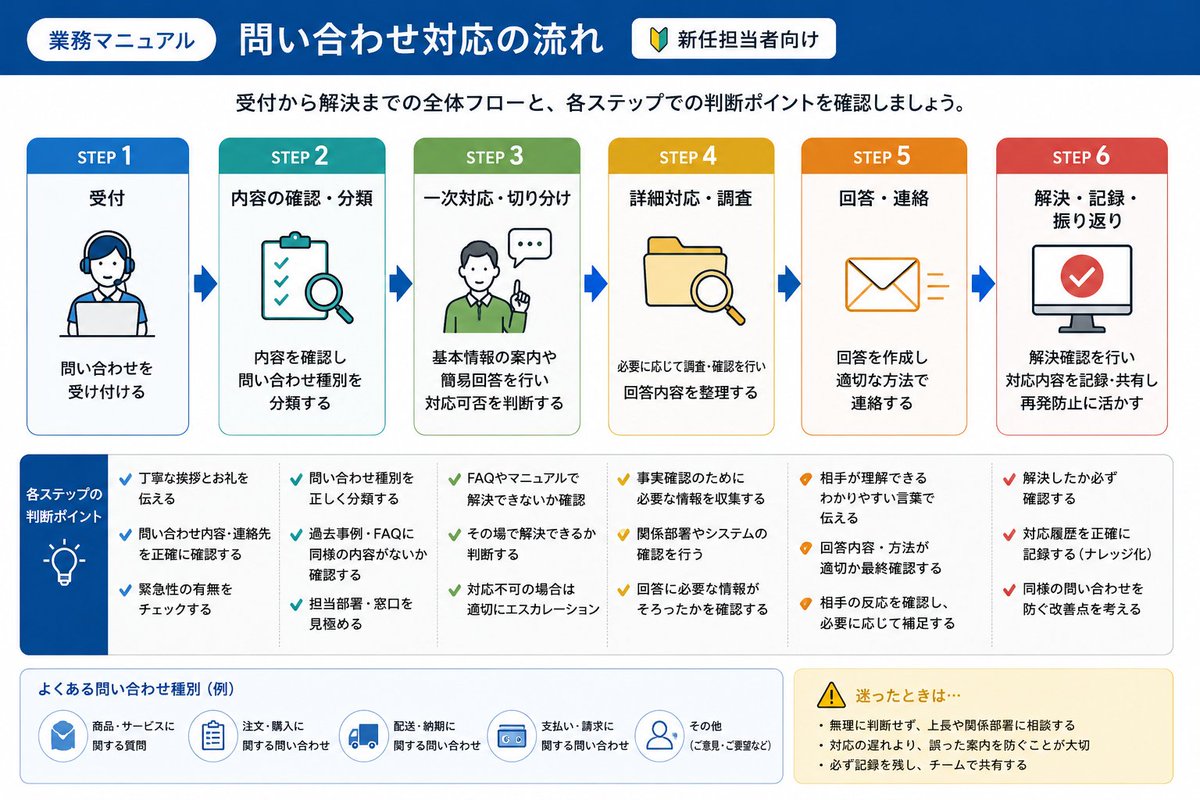
*Creation image
4 Tips to Level Up Your Prompts
Tip 1: Provide the source material in a structured way
Rather than letting it think from scratch, providing "source material" in bullet points or Markdown will improve accuracy by a different league. Passing existing meeting minutes or notes and saying "make this into a slide" is the fastest route.
Tip 2: Don't seek perfection at once; refine through dialogue
It ends up looking cleaner if you fix it little by little later, like "make the overall tone brighter" or "make the 3rd slide a diagram." Treat the first output as a "draft."
Tip 3: Instruct "One slide, one message"
Slides packed with too much information don't get the message across. Just by instructing "one message per slide," it becomes much easier to see.
Tip 4: Decide on the output format first
Will you distribute it as a PDF or edit it in PowerPoint? If you don't decide this first, you'll be in trouble later when you find out "PPTX output was only for the paid plan."
Chapter 7: Tips for "Finishing" to Remove the AI-like Feel
Slides made with AI will have an "AI-like" feel if left alone. Just by putting in a little effort here, they will transform into professional documents.
① Reduce text
AI tends to pack in text. Boldly cut text on each page. Aim for "documents to look at" rather than "documents to read."
② Limit the number of colors
Using too many colors immediately makes it look amateurish. Basically, limit it to two colors: "main color + accent color." This alone tightens it up.
③ Change the font
If you leave it as the default font, it gives off that "AI feel." Just by changing to an easy-to-read Gothic font like Yu Gothic or Meiryo, the impression changes.
④ Check numbers and facts yourself
This is the most important part of finishing. I'll touch on this in detail in the next chapter.
Chapter 8: Reference Sites to Increase Your Design "Drawers"
To make what AI created even better, the best way is to have "good slide patterns" within yourself. Here are reference sites where you can see professional documents.
A Treasure Trove of Examples: Slide Sharing Sites
- Speaker Deck There are many high-quality Japanese slides. Ideal for design reference. https://speakerdeck.com/c/design
- Docswell A domestic sharing service. Easy-to-read documents gather here. https://www.docswell.com/
- SlideShare World's largest, over 18 million items. Cool overseas documents are also abundant. https://www.slideshare.net/
- Slideland A gallery collecting financial results and company introduction documents of Japanese companies. https://www.slideland.tech/
Just by looking at sophisticated documents made by actual companies, your "drawers" will increase, thinking "Oh, there's this way of showing it."
Sites Where You Can Learn Principles: Design Textbooks
- Tsutawaru Design (Design that Conveys) A classic site for design principles of presentation materials. You can systematically learn the basics of fonts, color schemes, and layouts. https://tsutawarudesign.com/
- "How to Create Easy-to-Read Presentation Materials" (Yuta Morishige) A masterpiece slide deck that also became a book with 120,000 copies. https://www.amazon.co.jp/%E4%B8%80%E7%94%9F%E4%BD%BF%E3%81%88%E3%82%8B-%E8%A6%8B%E3%82%84%E3%81%99%E3%81%84%E8%B3%87%E6%96%99%E3%81%AE%E3%83%87%E3%82%B6%E3%82%A4%E3%83%B3%E5%85%A5%E9%96%80-%E6%A3%AE%E9%87%8D-%E6%B9%A7%E5%A4%AA/dp/484433963X
If you grasp the "principles" with these two, you will be able to judge "how to fix what AI created to make it better."
The power to use tools and an eye for design. Only when you have both does it become a weapon.
Chapter 9: Precautions When Using
AI slides are convenient, but please be sure to be careful about these three things.
① Always fact-check numbers and proper nouns
AI can mix in plausible "lies" (hallucinations). Be especially careful with market size, statistics, laws, and proper nouns. Data shows that over 30% of people cited "inclusion of false information" as a concern about AI slides. Don't use numbers produced by AI as they are; always verify them yourself.
② Understand the limitations of free plans
Many tools have limits on the number of generations, watermarks, and exports if they are free. In particular, many tools only offer "PowerPoint format output" for paid plans, so if you use it continuously, it's realistic to assume a paid plan. "Try for free, and if it's good, go paid" is the smart way to proceed.
③ Don't put in confidential information as is
Before putting confidential data or customer information into a tool, check the data handling policy (privacy policy) of each service. Be especially cautious with highly confidential documents.
Summary: Purpose-Based Tool Quick Reference Table
Since it's been long, I'll organize it with a quick reference table by purpose at the end.
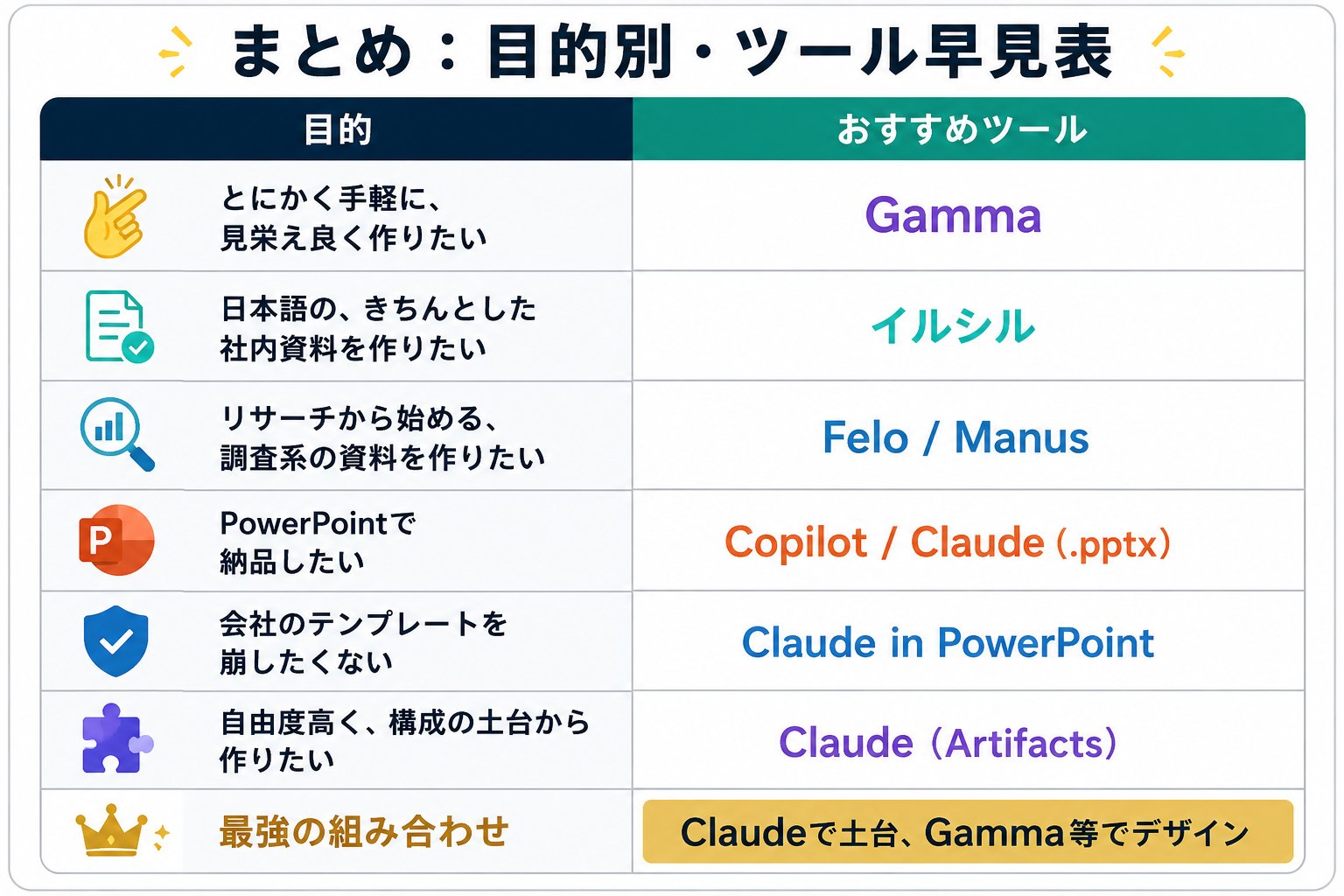
And the principles of success are just these:
- Treat AI as a "draft maker"
- Prompts consist of 5 elements (Theme, Target, Structure, Tone, Number of slides)
- Finishing (reducing text, limiting colors) is done by humans
- Get "good patterns" from reference sites
- Always fact-check numbers
There are many tools. But you don't need to master them all. First, try touching one that interests you for free. Once you experience "creating a slide in a few minutes," you won't be able to go back to manual work from scratch. Use that saved time for truly important work. That is the essence of utilizing AI in business.
Finally
Thank you for reading this far. It was a very long article, thank you for your hard work. I usually post specific stories on X (@ryuji_affiliate) every day about "using AI to make work and side hustles easier and faster." How to utilize the latest tools in practical work. I'm following them in real-time, so if you find it interesting, please follow me. Let's master new tools faster than anyone else together.
Ryuji Yamamoto (@ryuji_affiliate